






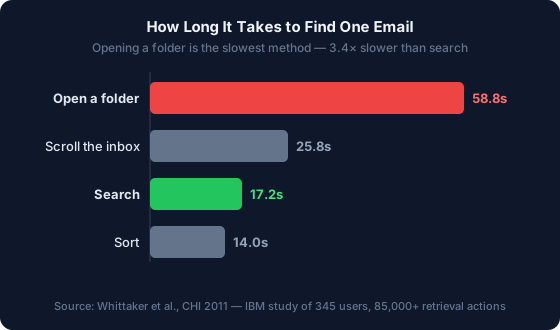
For most people, labels win — but not for the reason you'd expect. Labels let one email live in several places at once, which matches how your brain actually files things. Folders force one email into exactly one drawer. Yet here's the twist that reframes the whole debate: in a landmark IBM study of 345 email users, opening a folder to find a message took an average of 58.8 seconds, while a plain search took 17.2 — roughly 3.4 times faster (Whittaker et al., CHI 2011, 2011). Filers weren't any more likely to find what they were looking for, either.
So the honest answer to "labels or folders?" is: pick whichever your email app offers, keep it small, and lean on search. This guide explains the real structural difference, what the research says about which one actually helps, and why the question matters less every year.
Key Takeaways
- Folders are one-to-one (an email lives in a single folder); labels are many-to-many (one email, many labels) — Gmail uses labels, Outlook and Apple Mail use folders
- Opening a folder to find an email took 58.8 seconds on average vs 17.2 for search, and heavy filers were no more successful than light filers (Whittaker et al., CHI 2011)
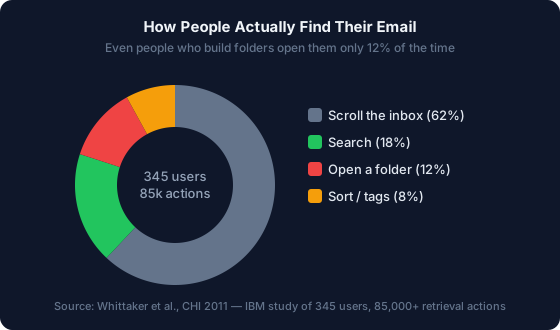
- People retrieve email by scrolling (62%) and searching (18%) far more than by opening folders (12%)
- Outlook quietly offers both: folders plus color Categories that behave like labels
- The debate is fading because automatic organization — threading and AI triage — beats manual filing on both speed and success
What's the Actual Difference Between Labels and Folders?
A folder holds an email in exactly one place; a label tags an email that can carry several tags at once and still sit in your inbox. That single structural fact — one-to-one versus many-to-many — is the entire difference. Google's own developer docs put it plainly: "A label has a many-to-many relationship with messages and threads" (Gmail API documentation, 2026).
Think of it physically. A folder is a paper drawer: a document goes in one drawer, and to file it in two places you'd need a photocopy. A label is a colored sticker: you can slap "Taxes," "2026," and "Client X" on the same email, then pull it up from any of those three angles later.

Which one you get depends entirely on your email client. Gmail has no traditional folders at all — even Inbox, Sent, and Trash are technically system labels, and any message can wear several labels while remaining in the inbox (Gmail API documentation, 2026). Gmail has worked this way since it launched in 2004, when Google deliberately bet on search plus labels instead of the folder trees every other provider used.
Outlook and Apple Mail take the opposite approach. In Apple Mail you move a message from one mailbox to another — it lives in one spot (Apple Support, 2026). But here's what most people miss: Outlook quietly gives you both systems at once.
The detail nobody mentions: Outlook has folders and Categories. A Category is a color-coded tag, and Microsoft's docs confirm you can "assign one or more categories to your messages" without moving them anywhere (Microsoft Support, 2026). So an Outlook user arguing that folders beat labels is usually ignoring the label system already built into their own app.
| Folders | Labels | |
|---|---|---|
| Relationship | One email → one folder | One email → many labels |
| Metaphor | Paper drawer | Colored sticker |
| Used by | Outlook, Apple Mail | Gmail |
| Move vs tag | Moving relocates it | Tagging leaves it in place |
| Also available in | — | Outlook (as Categories) |
Do Folders Even Help You Find Email?
Mostly, no. The most rigorous study on this question tracked 345 people making more than 85,000 real attempts to re-find email, and it found that folders were the slowest retrieval method and didn't improve success (Whittaker et al., CHI 2011, 2011). The researchers named the finding bluntly: "Foldering is less efficient and no more successful."
Look at the numbers. Opening a folder averaged 58.8 seconds per retrieval, more than three times slower than search at 17.2 seconds and slower even than mindlessly scrolling the inbox at 25.8 seconds.
Did all that filing at least make people more likely to find the message? It didn't. Heavy filers succeeded 88% of the time; light filers also succeeded 88% of the time (Whittaker et al., CHI 2011, 2011). The elaborate folder trees bought nothing in accuracy — and cost real minutes in setup and navigation.
According to the same IBM study, people relied on search or simple scrolling for 80% of their retrievals and clicked into a folder only 12% of the time, even when they'd built the folders themselves. The takeaway lands hard: we file email to feel organized, then find it a completely different way.
What this means for you: If you've ever felt guilty about a messy inbox with no folders, stop. The data says a searchable pile beats a tidy filing cabinet for actually retrieving things. The time you'd spend filing is better spent on a two-second search when you need the email — which, for most messages, is never.
When Labels Win, and When Folders Make Sense
Labels win whenever an email belongs to more than one category, which is most of the time. A single invoice can be "Finance," "Client X," and "Q1" at once — with labels you tag all three and find it from any of them. With folders you have to pick one drawer and hope you remember which. For anyone whose work crosses projects, clients, or topics, that flexibility is the whole game.

Folders still make sense in a few cases. If you need a hard, mutually exclusive boundary — personal versus work, or a "Legal Hold" archive you must keep separate for compliance — a one-place-only folder enforces that line in a way a tag can't. They also feel intuitive to anyone raised on Windows file systems, and a system you'll actually use beats a "better" one you fight.
According to research cited in the IBM study, people spend roughly 10% of their total email time just filing messages (Bälter, CHI 2000, 2000). That's the hidden tax on any manual system, folders or labels. So whichever you choose, the winning move is the same: keep it tiny. Five to seven categories mapped to what you do with email — not what it's about — will outperform fifty topic folders every time. Our guide to the best filters and folders for Inbox Zero walks through a five-category system that works in both Gmail and Outlook.
The Setup That Beats Both
Stop hand-sorting and let rules do it. The fastest system isn't labels or folders — it's a small set of automatic filters that tag or route mail as it arrives, backed by search for everything else. In 2025, 49% of professionals already found email filters effective at cutting overload, yet most had set up only one or two rules (Mailbird Email Overload Survey, 2025). The gap between "effective" and "actually set up" is where your time leaks.

Here's the practical build. In Gmail, create a handful of labels — Action, Waiting, Reference — then write filters that auto-apply them and skip the inbox for known senders. In Outlook, do the same with Categories plus a couple of rules, or a few folders if you prefer moving mail. Then trust search for retrieval instead of drilling through a tree. That's it. You're not choosing labels or folders so much as choosing automation over manual filing. For the full walk-through, see our complete guide to email management and the deeper Inbox Zero playbook for high volume.
Why the Labels-vs-Folders Debate Is Fading
The argument is dissolving because the best organization now happens without you. In the same IBM study, people whose mail was automatically grouped into conversation threads found messages more successfully — 91% versus 85% — than those relying on manual structure (Whittaker et al., CHI 2011, 2011). Automatic beat manual then, and the gap has only widened since.
That's the real trajectory. With 121 emails landing per day for the average worker and only 24% of them worth attention (cloudHQ, 2025; SaneBox, 2025), hand-filing at that volume is a losing race. AI triage reads each message, sorts it, and surfaces what needs a reply — so the label-or-folder question stops mattering, because you're no longer the one deciding where things go. That's the approach behind NeatMail: it triages and drafts inside your existing Gmail or Outlook, and you can read how its AI draft pipeline works under the hood if you're curious about the mechanics.
Frequently Asked Questions
Is a Gmail label the same as a folder?
Not quite. A folder holds an email in one place; a Gmail label tags it and can be one of several on the same message. But when you pair "Skip Inbox" with "Apply Label" in a Gmail filter, the label behaves like a folder — the email lands only under that label, not in your inbox. Gmail even lets you nest labels to mimic sub-folders.
Can I use both labels and folders?
Yes, and Outlook users already do. Outlook offers traditional folders plus color Categories that work like labels (Microsoft Support, 2026). In Gmail, labels are your only native option, but nested labels give you a folder-like hierarchy. Most people are better served keeping one system small than running both at full complexity.
Which is better for finding old emails later?
Search beats both. The IBM study found search retrieval averaged 17.2 seconds versus 58.8 for opening folders, and people who relied on search had higher success rates (Whittaker et al., CHI 2011, 2011). Whether you use labels or folders, a quick keyword search will usually find the message faster than navigating your own structure.
How many labels or folders should I create?
Keep it to five to seven, mapped to actions rather than topics. Categories like Action, Waiting, and Reference match how you process email; topic folders like "Newsletters from 2023" just multiply endlessly. Research cited in the IBM study found people create a new folder roughly every five days — a habit that produces clutter, not clarity (Boardman & Sasse, CHI 2004, 2004).
Do folders slow down my email?
Not your email's speed, but your speed. The setup and navigation time adds up: filers spend around 10% of their email time just sorting, and folder retrieval is the slowest method measured (Whittaker et al., CHI 2011, 2011). If your goal is fewer minutes lost to your inbox, aggressive filing is usually the wrong lever — filtering and search are better ones.
Conclusion
Labels versus folders is a smaller decision than it feels. Labels are more flexible and are your default on Gmail; folders enforce hard boundaries and suit Outlook and Apple Mail. Either works. What the research makes clear is that elaborate filing doesn't help you find email — search does, and automatic organization does even better.
So don't agonize over the taxonomy. Build five to seven categories, wire up a few filters — the Gmail filter generator writes the query syntax for each one — and let search carry the rest. In 2026, the real upgrade isn't a smarter folder tree — it's handing the sorting to automation entirely. Start with the filter-and-folder system that runs itself, and spend the saved time on work that isn't email.
Sources:
- Whittaker, Matthews, Cerruti, Badenes & Tang (IBM Research – Almaden), "Am I wasting my time organizing email? A study of email refinding," Proc. CHI 2011, retrieved 2026-07-07, https://dl.acm.org/doi/10.1145/1978942.1979457
- Google for Developers, "Manage labels — Gmail API," retrieved 2026-07-07, https://developers.google.com/workspace/gmail/api/guides/labels
- Microsoft Support, "Use categories in Outlook," retrieved 2026-07-07, https://support.microsoft.com/en-us/office/use-categories-in-outlook-87f27f03-4d9f-48dd-9623-2702692a4480
- Apple Support, "Move or copy emails between mailboxes in Mail on Mac," retrieved 2026-07-07, https://support.apple.com/guide/mail/move-or-copy-emails-mlhlp1000/mac
- Mailbird, 2025 Email Overload Survey (n=250+), retrieved 2026-07-07, https://www.getmailbird.com/email-overload-survey/
- cloudHQ, Workplace Email Statistics, 2025, https://blog.cloudhq.net/workplace-email-statistics/
- SaneBox, Email Signal Statistics, 2025, https://www.sanebox.com