







In 2026, the average office worker receives 121 emails per day (cloudHQ Workplace Email Report, 2025). Only 24% of those messages actually require attention (SaneBox, 2025). That means roughly 92 messages land in your inbox every day as noise — newsletters you barely read, automated notifications, CC chains you didn't ask to be on, promotional offers. Without a filtering system, you process all 121 manually. With one, you only ever touch the 29 that matter.
Inbox Zero isn't a mindset exercise. It's an engineering problem. This guide covers the specific folder architecture and filter rules that turn a chaotic inbox into a system that sorts itself.
Key Takeaways
- Only 24% of emails received daily are genuinely important; well-configured filters handle the other 76% automatically (SaneBox, 2025)
- Professionals waste an average of 10.8 hours per week on unproductive email that proper filters would route or archive (Mailbird, 2025)
- A five-folder system — Action Required, Waiting On, Reference, Projects, Archive — covers 95% of email processing decisions
- Gmail and Outlook both support powerful filter and rule creation; the same logic applies to both platforms, with different interfaces
- 49% of professionals already find email filters effective, but most have set up fewer than two rules (Mailbird Survey, 2025)
Why Your Email System Needs Both Filters AND Folders
Filters and folders solve different problems. A filter is a decision rule — it tells your email client what to do with incoming messages automatically. A folder (or label, in Gmail) is a storage location — it tells you where to look for something later. The mistake most people make is setting up one without the other.
In 2025, 45% of all global email traffic is spam (Kaspersky, 2025). Layer in newsletters, automated notifications, and CC chains, and the signal-to-noise ratio drops to roughly 24% important versus 76% noise. A filter without a destination folder just deletes or archives messages indiscriminately. A folder without filters requires you to manually sort everything that arrives. The combination creates a self-sorting system.

According to a 2025 Mailbird survey of 250+ knowledge workers, professionals waste an average of 10.8 hours per week on low-value email (Mailbird Email Overload Survey, 2025). That figure represents the time spent on messages that shouldn't reach the inbox in the first place — newsletters, automated alerts, bulk promotions. A properly configured filter-and-folder system eliminates most of it at the source.
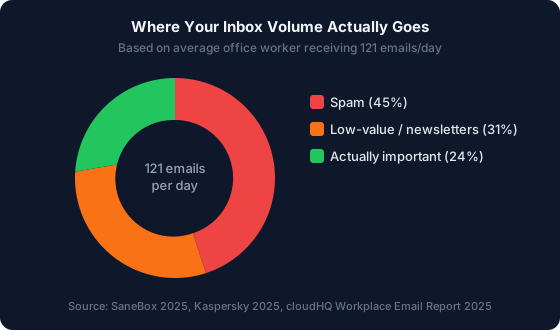
For every email that needs your attention, roughly three others don't. Source: SaneBox 2025, Kaspersky 2025, cloudHQ Workplace Email Report 2025.
What this means in practice: If you process email at 15 seconds per message and receive 121 messages per day, the 76% noise consumes 22.7 minutes daily — roughly 98 hours of wasted processing per year. A filter system doesn't make you faster at sorting email. It eliminates the sorting decisions entirely.
The Five-Folder System That Covers 95% of Email Decisions
The most common folder mistake is having too many. People create folders for every project, contact, and topic — then spend more time filing than they would have spent leaving everything in the inbox. The optimal folder system uses five categories that map to decision states, not content types.

1. Action Required Emails that need a response or a task from you. Anything here is active work. Keep this folder short — if it grows past 10 to 15 items, you have a processing backlog, not a storage problem.
2. Waiting On Emails where you've replied and are now waiting for someone else. Move messages here after sending. Review weekly and follow up on anything older than five business days. Our guide to handling email follow-ups covers the follow-up workflow in detail.
3. Reference Information you might need later but that requires no action: policies, account details, onboarding docs, shipping confirmations. Archive aggressively here. If you're unsure whether you'll need it, it goes to Reference — not back in the inbox.
4. Projects (with sub-folders)
If you work on named, long-running initiatives, create one sub-folder per active project. Example: Projects/Website Redesign, Projects/Q3 Budget. This is the one case where sub-folders are justified — the project name is the organizing principle, and the folder boundary is clear.
5. Archive
Everything processed but not deleted. Most email clients support fast search in Archive, so the internal structure matters less than having a clear boundary between "active" and "done." Add date-based sub-folders (Archive/2026) only if volume makes search unwieldy.
Gmail setup: In Gmail these are Labels, not traditional folders. Create them at Settings → See all settings → Labels → Create new label. Gmail supports nested labels — use Projects/Website Redesign as the label name to create sub-labels automatically. Apply multiple labels to a single email where needed.
Outlook setup: Right-click the root of your mailbox → New Folder. Create the same five names. For sub-folders under Projects, right-click the Projects folder → New Subfolder.
complete guide to organizing your email
What we've seen: Users who move from topic-based folder systems (one folder per client, project, or sender type) to the five-folder system consistently report lower friction within the first week. The shift is organizing by decision state — "what do I need to do with this?" — rather than content type — "what is this about?" Decision-state folders align with how you process email. Content-type folders align with how a librarian would catalog it. The difference shows up in daily speed.
How to Build Gmail Filters Step by Step
In 2025, 49% of professionals find email filters effective at reducing overload (Mailbird Email Overload Survey, 2025). The remaining 51% either haven't set up filters or have set up too few rules to make a difference. The Gmail filter interface is more capable than most people realize.

Step 1: Open the filter creation dialog In Gmail, click the search bar → click the filter icon (three horizontal lines at the right end). This opens the advanced search and filter criteria panel.
Step 2: Set your criteria The available filter fields:
- From: Sender's email address or domain (e.g.,
@mailchimp.com) - To: Useful for filtering emails sent to an alias or group address
- Subject: Text in the subject line (e.g.,
newsletter,unsubscribe,no-reply) - Has the words: Matches text anywhere in the email body or headers
- Doesn't have: Exclusion logic — filter all newsletters except those from
@yourcompany.com - Has attachment: Toggle for attachment-based filtering
- Size: Filter by message size
Step 3: Preview before creating
Click "Search" to see which existing emails match your criteria before committing. Adjust criteria if the filter is too broad or too narrow. If you'd rather assemble the query first and paste it in, the Gmail filter generator builds the exact from:, subject:, and has: syntax from the conditions you pick.
Step 4: Set the actions Click "Create filter" to proceed:
- Skip the Inbox (Archive it): Routes matching email directly to All Mail, bypassing the inbox
- Mark as read: Removes the unread badge — useful for notifications you want to scan but not be interrupted by
- Apply the label: Routes to a specific folder
- Delete it: Use only for confirmed, permanent spam — test for two weeks before enabling
- Never send it to Spam: Whitelist important senders that Gmail might over-filter
- Also apply filter to X matching conversations: Applies the rule retroactively — almost always worth enabling
Step 5: Activate and test Click "Create filter." Send yourself a test email matching the criteria and verify it routes correctly. Manage all active filters at Settings → See all settings → Filters and Blocked Addresses.
According to the 2025 Mailbird survey, knowledge workers who used at least five active filter rules reported meaningfully lower email-related stress scores than those with fewer than two rules (Mailbird Email Overload Survey, 2025). The survey found outcomes for workers with one or two filters were statistically indistinguishable from no filters at all. The threshold isn't one or two rules — it's a comprehensive ruleset that covers all major noise categories.
The 7 Essential Filter Rules to Set Up First
These seven filter rules address the highest-volume categories of inbox noise. Set these up before any project- or sender-specific filters — they eliminate the majority of what shouldn't reach your inbox in the first place.

Rule 1: Newsletter and bulk email
- Criteria: Has the words
unsubscribeORlist-unsubscribe - Actions: Skip inbox, Apply label "Newsletters", Mark as read
- Result: All bulk-sent newsletters bypass your inbox and land in a folder you check on your own schedule — weekly or never.
For a deeper approach to stopping newsletter overload at the source, see how to stop newsletter clutter in Gmail.
Rule 2: Promotional email
- Criteria: From contains
noreply@ORno-reply@ORdonotreply@ - Actions: Skip inbox, Apply label "Promotions", Mark as read
- Result: Automated promotional senders never interrupt your main inbox.
Rule 3: Notification and alert
- Criteria: Subject contains
notificationORalertORautomatedORdo not reply - Actions: Skip inbox, Apply label "Notifications", Mark as read
- Result: System notifications from apps and platforms route to a dedicated folder for batch review.
Rule 4: CC and BCC low-priority
- Criteria: To does NOT contain your primary email address (you were CC'd, not directly addressed)
- Caution: Aggressive rule — create exceptions for CC senders whose messages you need promptly using "Doesn't have" with their domain
- Actions: Skip inbox, Apply label "CC — FYI", Mark as read
- Result: Emails where you're not the primary recipient are separated from those where you are.
Rule 5: Finance and billing
- Criteria: Subject contains
invoiceORreceiptORpaymentORbillingORsubscription - Actions: Skip inbox, Apply label "Finance", Mark as read (do NOT delete — you need these records)
- Result: Financial emails are preserved and searchable without cluttering your main view. See how to handle promotional emails for identifying which of these need action.
Rule 6: Internal company-wide communications
- Criteria: From your company's HR or internal comms domain (e.g.,
@hr.yourcompany.com,noreply@yourcompany.com) - Actions: Skip inbox, Apply label "Company — Internal", Mark as read
- Result: Company-wide announcements don't bury direct messages from colleagues who need a response.
Rule 7: Order confirmations and shipping
- Criteria: Subject contains
order confirmationORyour orderORshipping confirmationORhas shipped - Actions: Skip inbox, Apply label "Orders", Mark as read
- Result: E-commerce tracking emails are preserved for reference without taking up inbox space.
Pattern we've observed: Email workflows with five or more active filter rules show a consistent drop in reactive inbox management compared to those with fewer than five. The inflection point appears to be around Rule 5 — enough coverage to address newsletters, promotions, notifications, automated alerts, and CC chains simultaneously. Fewer than five leaves gaps that still generate context-switching overhead throughout the day.
How to Set Up Outlook Rules for Microsoft 365 Users
In May 2026, Outlook held 6.49% of global email client market share (Litmus Email Client Market Share Report, May 2026). If your workplace uses Microsoft 365, Outlook's Rules function achieves the same outcomes as Gmail filters — different interface, same logic.
Creating an Outlook rule:
- Go to File → Manage Rules & Alerts (desktop) or Settings → Mail → Rules (Outlook on the web)
- Click New Rule
- Choose "Apply rule on messages I receive"
- Set conditions: from people or domain, subject contains, sent only to me, etc.
- Set actions: move to folder, mark as read, delete, forward
- Set exceptions: add "except if from [sender]" for any VIP senders
- Name the rule and click Finish
Outlook equivalents for the seven rules above:
| Gmail Filter | Outlook Condition | Outlook Action |
|---|---|---|
| Newsletter (unsubscribe) | Subject contains "unsubscribe" | Move to: Newsletters |
| Promotional (noreply) | From address contains "noreply" | Move to: Promotions |
| Notification (alert) | Subject contains "notification" | Move to: Notifications |
| CC low-priority | Sent to: not directly to me | Move to: CC — FYI |
| Finance (invoice) | Subject contains "invoice" OR "receipt" | Move to: Finance |
| Internal HR | From: [HR domain] | Move to: Company Internal |
| Orders (shipping) | Subject contains "order confirmation" | Move to: Orders |
One important distinction: Rules created in Outlook on the web (OWA) run server-side — they apply even when Outlook is closed. Rules created in the Outlook desktop app run only when the app is open. For reliability, create rules in OWA where possible.
If you want to skip manual rule creation entirely, NeatMail auto-categorizes incoming email using ML — it learns from your corrections so the filter set grows smarter over time without requiring manual updates to individual rules.
How to Maintain Inbox Zero After Your Filters Are Set Up
Setting up filters is a one-time effort. Maintaining them is a weekly habit. Without periodic review, rules get stale, important email starts slipping through to labeled folders, and the inbox starts filling up again.
In 2023, researcher Dr. Gloria Mark at UC Irvine found it takes 23 minutes and 15 seconds to fully regain focus after an email interruption (University of California, Irvine, digital distraction research, 2023). With 121 emails arriving daily, every message that bypasses your filters and interrupts your work carries that 23-minute focus tax. A maintained filter set is a cognitive load management tool, not just an organization system.
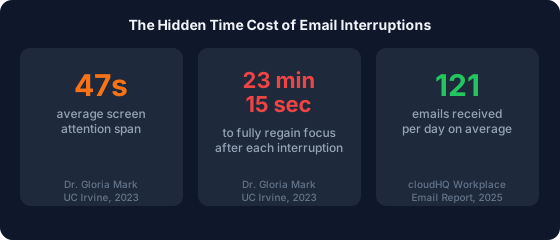
Without filters, each of those 121 daily emails is a potential 23-minute focus tax. Source: Dr. Gloria Mark, UC Irvine, 2023; cloudHQ, 2025.
Weekly maintenance (10 minutes every Friday):
- Check your filter list — did any important email get mis-routed this week?
- Scan Newsletters and Notifications folders — unsubscribe from anything you didn't open
- Clear Action Required — move to Archive or Waiting On
- Check Waiting On for anything older than five business days and follow up
- Empty the inbox — anything that still landed there either needs a new filter rule, or it's genuinely important and goes to Action Required
When to update a filter:
- A new sender's messages fit an existing category → add their domain to the matching rule
- A filter is mis-routing important email → add an exception using "Doesn't have" (Gmail) or "except if" (Outlook)
- A project ends → archive its sub-folder and delete any project-specific rules
If you're dealing with 100+ emails per day, the standard five-folder system still applies — but the processing cadence changes. How to maintain Inbox Zero at 100 emails per day covers that adaptation in detail.
Frequently Asked Questions
How many email filters should I have?
Start with the seven rules above, then add more as specific patterns emerge. Most professionals maintain a clean inbox with 10 to 15 active filter rules. Fewer than five leaves the major noise categories unaddressed. More than 30 creates overlapping rules that are harder to debug when something slips through.
What if an important email gets caught by a filter?
Don't use the Delete action until you've run a filter for at least two weeks and confirmed there are no false positives. For the first month, check filtered folders once per day. Add exception rules for any sender whose emails should bypass a filter — Gmail's "Doesn't have" field and Outlook's "except if from" handle this cleanly.
Should I use Gmail's built-in Categories (Primary, Social, Promotions) or create custom filters?
Use both. Gmail Categories do broad initial sorting automatically and are a good baseline. Custom filters give you named folders you control, more specific logic, and the ability to add a "Reference" or "Finance" folder that Gmail's default tabs don't provide. Let Categories handle the rough sort; add custom filters on top for categories that matter to your workflow.
How is a Gmail label different from a folder?
A Gmail label can be applied to an email while it stays in the inbox or in another label simultaneously. A traditional folder is mutually exclusive storage. When you use "Skip Inbox + Apply Label" in the same filter, the label functions identically to a folder — the email lands in the label and only in the label, not in the inbox.
How often should I audit my filter rules?
Once per quarter is enough for most people. Trigger an immediate audit if you've missed an important email, or if your inbox is filling up again despite active filters. Both are signals that your ruleset has gaps or outdated rules matching the wrong senders.
how to handle promotional email and filter rules
Conclusion
Inbox Zero isn't about processing email faster or maintaining perfect discipline. It's about reducing the number of decisions your inbox forces on you each day. The 76% of messages that aren't important should never require a conscious decision — they should route, label, and wait in a folder until you're ready to look at them.
The five-folder system and seven filter rules in this guide cover most of that routing work. In 2026, 33% of professionals have considered quitting due to email overload (Clean Email Industry Report, 2026). A system doesn't eliminate the volume — but it makes 76% of that volume irrelevant to your working day.
Set up the filters once. Spend 10 minutes per week maintaining them. The inbox becomes a tool instead of a source of cognitive debt. To write the seven rules above without hand-typing the operators, run each one through the free Gmail filter generator first.
For the foundational Inbox Zero methodology, start with the complete guide to email management. For AI-powered sorting that goes beyond manual rules, see the open-source email assistant guide.
Sources:
- cloudHQ, Workplace Email Statistics, retrieved 2026-06-29, https://blog.cloudhq.net/workplace-email-statistics/
- SaneBox, Email Signal Statistics, 2025, https://www.sanebox.com
- Kaspersky, Spam and Phishing Report, 2025, https://www.kaspersky.com
- Mailbird, 2025 Email Overload Survey (n=250+), retrieved 2026-06-29, https://www.getmailbird.com/email-overload-survey/
- Litmus, Email Client Market Share, May 2026, https://www.litmus.com/email-client-market-share
- Dr. Gloria Mark, UC Irvine, research on digital distraction and focus recovery, 2023, https://www.ics.uci.edu/~gmark/
- Clean Email, Email Industry Report 2026, retrieved 2026-06-29, https://clean.email/blog/insights/email-industry-report-2026
- McKinsey Global Institute, The Social Economy, 2012, https://www.mckinsey.com