







You do not need an empty inbox. You need a 15-minute system that helps you decide what each email means.
I’d boil the whole article down to this: set a 15-minute daily block, sort each message into act now, act later, waiting, or ignore, and stop when the timer ends. That keeps email from taking over the rest of my day.
Here’s the full idea in one glance:
- Minutes 0–3: clear the inbox view and scan unread mail
- Minutes 3–8: check sender and subject before opening
- Minutes 8–15: reply only to items that take under 2 minutes
- Archive anything with no action
- Label, flag, or move messages that need follow-up
- Mute in Gmail or Ignore in Outlook for noisy threads
- Put promises and deadlines in a follow-up list, not in the inbox
A short email block like this works because it cuts down decision drag. For many office workers, email still eats 2 to 3 hours per day, so even one tighter 15-minute pass can save time and mental load.
If I use this system every day, my inbox may not be empty - but it becomes clearer, lighter, and easier to trust.
| Step | What I do | Result |
|---|---|---|
| Scan | Review sender and subject first | I spot what matters fast |
| Decide | Archive, label, flag, mute, or ignore | Each email gets a clear state |
| Act | Reply only if it takes under 2 minutes | Small tasks stop piling up |
| Track | Move commitments to follow-up | Promises don’t get buried |
| Stop | End at 15 minutes | Email does not take over my day |
That’s the whole system: decide fast, sort with purpose, and leave deeper work for later.
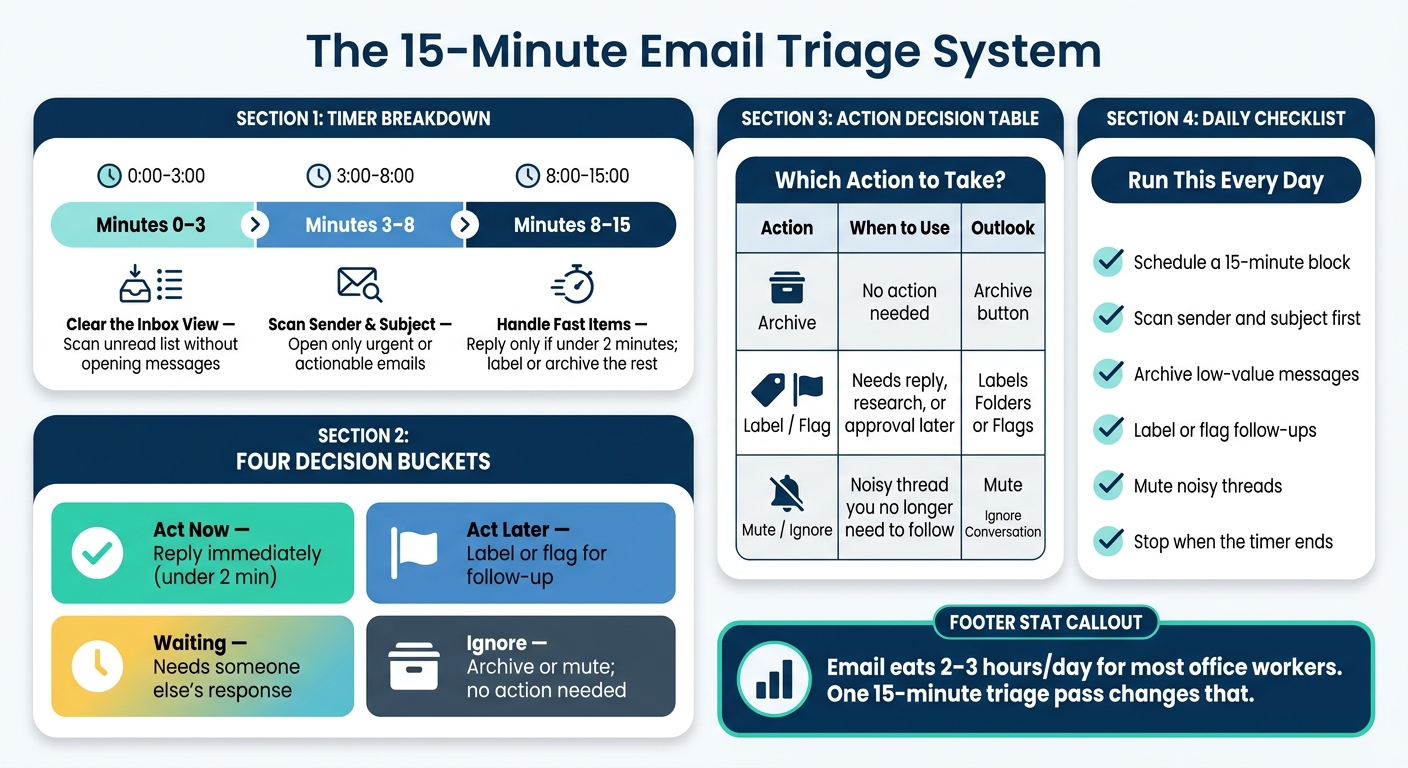
How I only spend 15 minutes a day checking my email
Set up the 15-minute block and stick to the timer
Set a recurring 15-minute calendar block and run a countdown timer at the same time. Keep Gmail or Outlook open, close everything else, and use that block for ONE job: decide the next action for each message.
This is not the time to drift into long replies or random inbox cleanup. It’s a short sorting session. Move each message into one of four buckets: act now, act later, waiting, or ignore.
Stop when the timer ends. That line matters. It keeps this block from eating the rest of your day.
Minutes 0–3: Clear the inbox view
Open your inbox, close extra tabs and side panels, and scan the unread list without opening messages.
The goal here is simple: clean up your view so you can move fast. No clicking around. No getting pulled into one email thread.
Minutes 3–8: Scan sender and subject before opening
Start with the sender and subject line. Open only the messages that look urgent, actionable, or unfamiliar.
That one habit can save a lot of time. You’re not reading everything. You’re making a quick call on what deserves attention right now.
Minutes 8–15: Handle fast items and move the rest to follow-up
Take care of messages that need less than 2 minutes. Then label or folder, flag, or archive the rest for later.
Once the timer starts, use a simple rule for each message:
- open
- archive
- label
- mute
The timer keeps the block moving, and the next step is picking the right action for each message.
A simple decision framework: archive, label, or mute
Use the same rule for every message: act now, archive, label, or mute. Once you’ve done a quick sender and subject scan, this rule makes the next click almost automatic.
The goal is simple: every message should go into a clear state. It should not stay sitting in your inbox, quietly asking for more attention later.
What to archive right away
Archive anything that doesn’t need action from you. That usually includes newsletters, promotional emails, receipts or invoices, automated alerts, and CC/FYI messages where you’re only a passive observer.
If nothing needs to happen, get it out of view.
What to label or flag for later
Label or flag messages that need a reply, research, or approval later. In Gmail, you can use labels like Action or Waiting. In Outlook, use folders or flags.
This works well for messages that matter, but not at this exact moment. You’re not ignoring them. You’re giving them a place.
What to mute in Gmail or ignore in Outlook
Mute in Gmail or ignore in Outlook when a thread gets noisy and you no longer need to follow it. This is different from archiving. When you archive a thread, a new reply can pull it back into your inbox. When you mute or ignore it, new replies stay out of your way.
That makes this the right move for group threads and reply-all storms that don’t need your attention anymore.
Use the table only when you need the fastest possible choice.
| Action | When to use it | Gmail | Outlook |
|---|---|---|---|
| Archive | No action needed | Archive button | Archive button |
| Label / Flag | Needs response, research, or approval later | Labels | Folders or flags |
| Mute / Ignore | Noisy thread; you no longer need to follow it | Mute | Ignore Conversation |
How to apply the system in Gmail and Outlook
Use the same triage rules here so each inbox call takes one click, not a mini debate.
Gmail: archive, labels, stars, and mute
In Gmail, use Archive for done items, labels for follow-up, stars for today’s priorities, and Mute for noisy threads.
Use stars ONLY for messages you must revisit today. If everything gets a star, the star stops meaning much.
For repeat noise, set up Gmail and Outlook filter rules so low-value messages never clog your inbox in the first place:
- Newsletters: contains "unsubscribe" → skip the inbox, apply Newsletters
- Promotions: from noreply@ or donotreply@ → skip the inbox, apply Promotions
- Notifications: subject contains "notification" or "alert" → skip the inbox, apply Notifications
- CC low-priority: not sent directly to you → skip the inbox, apply CC - FYI
- Finance: subject contains "invoice" or "receipt" → skip the inbox, apply Finance (you can use a Gmail filter generator to build these search queries automatically)
When a group thread gets noisy, use Mute so future replies stay out of your inbox.
The logic stays the same in Outlook. Only the buttons change.
Outlook: archive, folders or categories, flags, and ignore
In Outlook, Archive or Move to Folder clears the inbox while keeping the message available for later. Use categories or a dedicated folder for follow-up items, and flags for anything you need to act on soon.
Use Ignore Conversation to move the thread and future replies out of your inbox.
Use archive for done items, labels or categories for follow-up, and mute or ignore for threads you no longer need to see.
Capture commitments and close the session
Mark commitments for follow-up instead of finishing every email now
Triage should leave you with a follow-up list you trust, not a polished inbox. The goal isn't to finish every email on the spot. It's to spot the messages that come with a real commitment, move them out of the inbox, and keep going.
If a message needs a reply, a task, or some kind of promise, mark it for follow-up and move on. Save the actual reply for a separate work block later.
Use labels like these to turn split-second triage calls into a follow-up system you can track. In NeatMail, follow-up tracking can also happen automatically. It can detect commitments and file them under a dedicated label.
| Label / Folder | What goes here |
|---|---|
| Action Required | Needs your reply or a task |
| Waiting On | Needs someone else's response |
| Follow up | Auto-detected commitment |
That split keeps triage short. It also saves the deeper work for a time when you can give it your full attention.
Use NeatMail to track follow-ups inside Gmail and Outlook
Manual follow-up tracking can work. But once threads get long, it's easy for promises to slip through the cracks.
NeatMail helps by finding commitments you make or receive inside Gmail or Outlook threads, labeling them for follow-up automatically, and drafting reminder replies when deadlines arrive.
Conclusion: the daily triage system in one short checklist
Run this each day and the inbox starts to feel less like a backlog and more like something you can handle:
- Schedule a 15-minute block
- Scan sender and subject first
- Archive low-value messages
- Label or flag follow-ups
- Mute noisy threads
- Stop when the timer ends
Perfection isn't the point. Daily repetition matters more. A partial triage session each day does more than a deep clean once a week.
FAQs
What if 15 minutes isn’t enough?
If 15 minutes isn’t enough, that usually means your inbox problem starts before you sit down to clean it up. Put simply, too much mail is often a sign that your volume reduction or automation setup needs work.
Set aside 30 minutes for a bulk unsubscribe session and aim to remove 30–50 senders. Then check your filter rules for things like:
- newsletters
- receipts
- priority senders
NeatMail can help here too. It can auto-label mail, archive unwanted senders, and track commitments.
How often should I check email each day?
Research suggests that checking email two to three times a day hits a good balance. It can lower stress, cut down on pointless interruptions, and help you stay productive.
A common way to handle this is simple: check your inbox at set times, then close your email tab between sessions. That keeps email from pulling you off track every few minutes.
Tools like NeatMail can also help by sorting important threads and automating routine tasks during short, focused 15-minute triage blocks.
What should go on my follow-up list?
Move email threads that include a promise or commitment, whether you made it or someone else made it to you. During your 15-minute triage, take those threads out of your main inbox and place them in a dedicated follow-up label.
NeatMail can spot these commitments on its own and track them in a single Follow Up label, so nothing slips through the cracks even if the original email is archived.