






If I want Gmail triage on my phone to work, I keep it to one label: Follow up. I label emails that need action, archive them, and leave the inbox for new mail. In Gmail mobile, Move to is the key step because it both adds the label and removes the thread from Inbox in one tap path.
Here’s the whole article in plain English:
- I set up labels on Gmail web first, not on mobile
- I use one main action label: Follow up
- I keep extra labels short, like Receipts, Finance, or Reference
- I use Move to when I want to label + archive
- I use Label on iPhone or Change labels on Android when I want the email to stay in Inbox
- I use label views and search operators like
label:"Follow up" is:unreadto find work - I switch back to Gmail web for setup jobs like filters, colors, nested labels, and visibility settings
- I remember Gmail allows up to 5,000 labels per account and up to 500 filters
- If I also use Outlook, I match this system with categories and flags instead of Gmail labels
A few points matter most on a phone. First, Gmail labels are not folders, so one message can carry more than one label. Second, categories like Promotions are separate from custom labels. Third, a long label tree may look neat, but on mobile it often means more scrolling, more taps, and more delay.
My short version:
Act later? Follow up.
Just keep it? file it with a simple label.
Done with it for now? archive it.
Create New Labels in Gmail Mobile App #android
Quick comparison
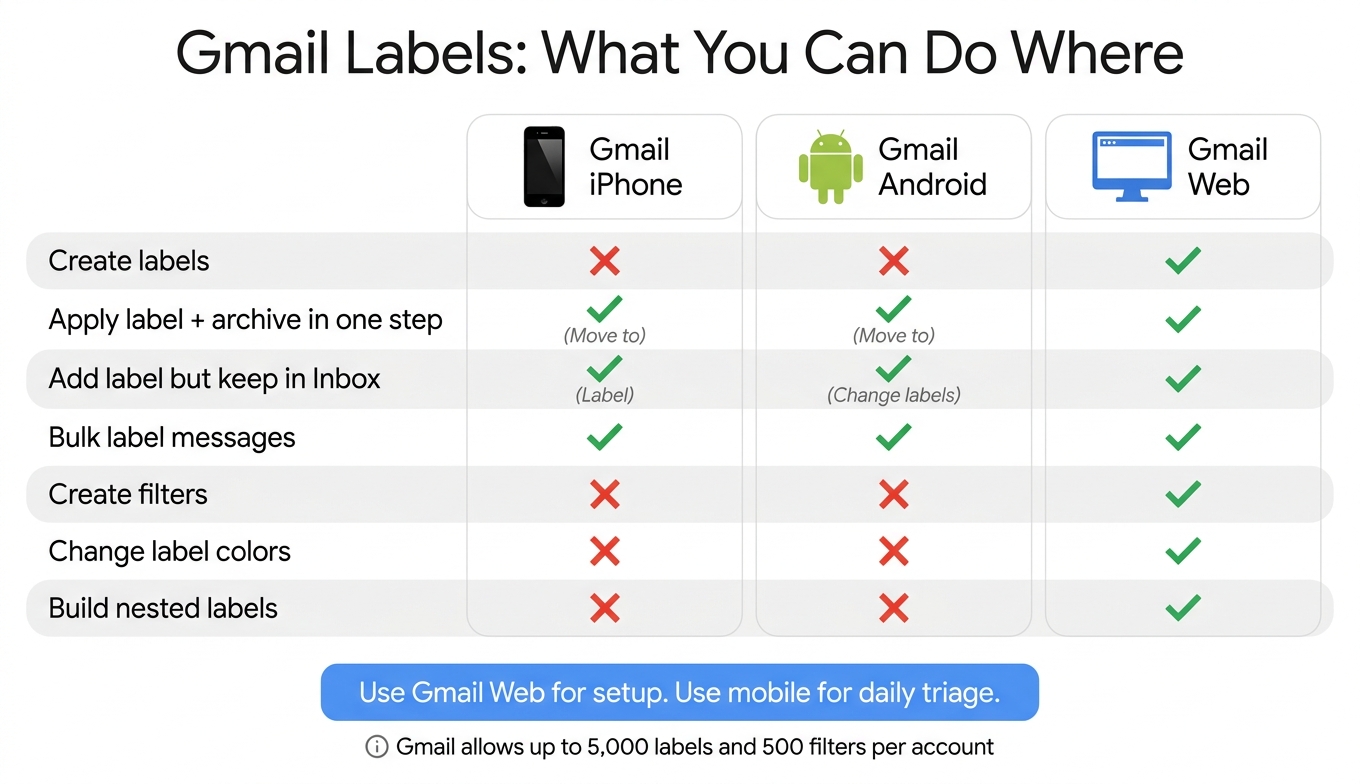
| Task | Gmail iPhone | Gmail Android | Gmail web |
|---|---|---|---|
| Create labels | No | No | Yes |
| Apply label and archive in one step | Yes, with Move to | Yes, with Move to | Yes |
| Add label but keep in Inbox | Yes, with Label | Yes, with Change labels | Yes |
| Bulk label messages | Yes | Yes | Yes |
| Create filters | No | No | Yes |
| Change label colors | No | No | Yes |
| Build nested labels | No | No | Yes |
Bottom line: if I want less inbox drag on mobile, I use one clear queue, short label names, and a daily archive habit. That gives me a simple system I can keep using on both iPhone and Android.
Set up your label system on Gmail web before triaging on mobile
Set up your labels in Gmail web first. Then you can use the same setup for fast triage in Gmail iOS and Gmail Android.
Create labels on Gmail web for use on Gmail iOS and Gmail Android
In Gmail web, click the gear icon in the top-right corner, choose See all settings, and open the Labels tab. Then scroll to the bottom of the Labels section and click Create new label.
Your labels, nested labels, and label colors will sync to Gmail iOS and Gmail Android.[3][7]
Use nested labels only when you need to group clients or projects. For example, if you have Clients/Acme, apply the child label itself instead of the top-level label.[3]
Pick label names that stay readable on a small screen
On mobile, space gets tight fast. Label names longer than 40 characters often get cut off in the Gmail sidebar and in message chips.[3] That makes short, clear names much easier to scan.
A simple setup usually works best:
- Follow up as your main action label
- A small set of filing labels like Reference, Finance, or Receipts, if you already use them[2][3]
Because Gmail sorts labels alphabetically, numeric prefixes can help keep your top labels near the top of the mobile menu. For example, 01-Follow up and 02-Reference.[3] Also, keep nesting to no more than two levels.
Gmail label limits that affect mobile triage
Gmail allows up to 5,000 labels per account, based on the Google Workspace Gmail limits page.[3] Gmail also limits filters to 500 per account.[8]
If you use filters, that 500-filter cap matters too. Once your labels are set, you’re ready to start applying them more quickly in Gmail iOS and Gmail Android.
How to apply labels and triage on Gmail iOS and Gmail Android
Once your labels are set up in Gmail web, the mobile apps make sorting email pretty painless. In Gmail, archiving removes a message from Inbox but keeps any labels already on it. On mobile, Move to does two things at once: it applies a label and archives the message. By contrast, Label on iOS and Change labels on Android adds a label without taking the message out of the inbox [3][6][5][4].
Gmail iOS: label one message, then archive it
In Gmail iOS, open the message, tap the three-dot menu in the top-right corner, and choose Move to. Then pick Follow up for something that needs action, or choose one of your filing labels for a message you just want to store. The message leaves Inbox and remains under that label [5][4].
If you want the message to stay in your inbox, tap Label instead [5][4].
Gmail iOS: use Change labels to triage multiple messages at once
Need to sort a batch? In Gmail iOS, long-press one message in the inbox list to enter selection mode, then tap the other messages you want. Tap the three-dot menu in the top-right corner and choose Change labels. Check the labels you want, then tap Done [1][5].
This works well when you want to tag a group of threads now and archive them later.
Gmail Android: label single messages while reading
In Gmail Android, open a message and tap the three-dot menu. Choose Move to if you want to apply a label and archive the message in one step. Use Follow up for anything that needs a reply or action, and use a filing label for messages you simply want to keep on file [5][4].
If you want the message to stay visible in your inbox, choose Change labels instead [5][4].
Gmail Android: use Move to to clean up the inbox in batches
In Gmail Android, long-press one message in the inbox list to start selecting messages, then tap the rest of the batch. Open the three-dot menu and choose Move to if you want to file the whole group and remove it from the inbox. Select the label, then tap OK [5][3].
If you only want to tag the batch and keep it in the inbox, use Change labels instead [5][3].
A short daily mobile routine for staying on top of email
A simple two-pass routine can make mobile triage feel much less messy. On your first pass, look for messages that need a response or some kind of action. Apply Follow up, then archive them. On your second pass, file everything else under your filing labels and archive those too [2][5].
That way, Follow up becomes your working queue, and label search gives you a fast way to pull up the exact thread you need.
Use label views and search to find work faster on mobile
Think of labels as your mobile queue and search as your shortcut. Labels are best when you want to scan what’s waiting. Search is best when you need one exact thread. Use label view to look through your queue, and use search when you want to go straight to a single message.
Open the Follow up label on Gmail iOS and Gmail Android
In Gmail iOS or Gmail Android, tap Menu, open Labels, then tap Follow up [1][5].
That view acts like a queue. Once you finish a message, archive it. Then the label view keeps showing only the items that still need attention.
Combine labels with Gmail mobile search
Gmail iOS and Gmail Android both support search operators [2][4]. Here are a few useful searches:
- Find unread items in your queue:
label:"Follow up" is:unread - Find a specific sender inside Follow up:
label:"Follow up" from:boss@company.com - Pull receipts before an expense report:
label:Receipts has:attachment
Use label view when you want to scan your active queue. Use search when you want to jump straight to one message.
Some label tasks are easier on Gmail web, which the next section covers.
What does not work on mobile, and when to switch to Gmail web or Outlook web/new Outlook for Windows
After your daily inbox triage on mobile, shift any setup work to Gmail web or Outlook web/new Outlook for Windows.
What Gmail iOS and Gmail Android cannot do
Gmail iOS and Gmail Android can't create filters, change label colors, or build nested labels [6][3]. They also can't change inbox category settings or system-label visibility. Google sets a limit of 5,000 labels per account, including system labels [3].
So here's the simple split: use Gmail web to set up labels, nested labels, colors, and filters. Use mobile for the day-to-day stuff like reading, labeling, and archiving.
How Outlook handles categories instead of Gmail-style labels
If you also handle email in Outlook, stick with the same approach. In Outlook web and new Outlook for Windows, use categories and flags instead of Gmail-style labels [9].
Categories work like color-coded tags alongside a folder system. That means one email can have more than one category at the same time. If you've ever wished folders were less rigid, that's the appeal.
Create your categories in Outlook web or new Outlook for Windows before you start sorting messages there.
Gmail labels vs. Outlook categories: a side-by-side comparison for solo professionals
| Gmail web | Gmail iOS | Gmail Android | Outlook web / new Outlook for Windows | |
|---|---|---|---|---|
| Feature name | Labels | Labels | Labels | Categories |
| Multiple tags per message? | Yes | Yes | Yes | Yes |
| Bulk triage practical? | Yes | Limited | Limited | Yes |
| Create/edit filters or rules? | Yes | No | No | Yes |
| Manage colors? | Yes | No | No | Yes |
Use web clients for setup. Use mobile clients for daily triage.
Optional: automate your Follow up list across Gmail and Outlook with NeatMail
If your single Follow up label already works on mobile, NeatMail can keep that queue up to date for you.
How NeatMail fits a one-label workflow
NeatMail can apply your existing Follow up label on its own. It’s an AI email assistant for Gmail and Outlook that detects promises and commitments in email threads, then adds your Follow up label automatically. Because NeatMail labels the message before it syncs to mobile, you keep the same Follow up queue visible in Gmail iOS and Gmail Android [7][5].
When automation helps and when manual labels are enough
Manual labeling works well for low-volume inboxes. If your inbox is fairly light, doing it by hand may be all you need. But once the queue starts to grow, automation can save time and cut down on missed follow-ups.
This is especially useful if you handle a larger number of threads or switch between Gmail and Outlook. In that setup, NeatMail keeps detected commitments in one Follow up label.
Conclusion: Keep mobile triage simple and let one Follow up label hold your action items
Set up your labels in Gmail web first. After that, handle email each day in Gmail iOS or Gmail Android.
On mobile, the goal is simple: make a decision and move on.
Use Move to when you want to apply a label and archive the message in one step. If you're on Gmail iOS, use Label and then archive. If you're on Gmail Android, use Change labels and then archive.
Put anything that needs action into Follow up. That's your holding spot for tasks, replies, and loose ends that still need your attention.
If that manual habit starts to slip, NeatMail can auto-label commitments into Follow up across Gmail and Outlook.
One Follow up label, plus a daily archive habit, is enough to keep mobile triage under control.
FAQs
Should I use more than one action label?
Yes - use more than one action label only if it helps you triage in one pass.
In Gmail web, you can apply multiple labels to a message. On Gmail iOS and Gmail Android, you can use the label-change flow to select more than one label.
If that doesn’t help, keep it simple. A single Follow up label is usually the better move, so commitments don’t get scattered across different labels.
In Outlook web and new Outlook for Windows, one category or tag per message usually works better.
What happens if I archive a labeled email?
In Gmail, archiving removes the Inbox label. That means the email disappears from your main inbox view, but it isn't deleted. You can still find it through search, in All Mail, and under any other labels already on the message.
If someone replies later, the conversation comes back to your inbox automatically on Gmail web, Android, and iOS.
When should I switch from mobile to Gmail web?
Use Gmail web when you need to change your label setup, like reordering labels, hiding them, changing label colors, or nesting labels under parent labels. You also need Gmail web to create or edit automated filters.
Use Gmail iOS or Gmail Android for quick triage and manual filing. But for more complex organization and high-volume cleanup, switch to Gmail web.