







You don’t need to delete low-priority email to get a clean inbox. In Gmail, I can use filters to skip the inbox and send newsletters, receipts, promos, alerts, and noisy CC threads straight to archive.
Here’s the short version:
- Archive removes email from the Inbox, not from Gmail
- Archived messages stay searchable in All Mail
- Replies to archived threads can return to the Inbox
- Muted threads stay out of the Inbox even when new replies arrive
- Filters can also add labels while archiving
- NeatMail adds rule-based cleanup across Gmail and Outlook
- Paid NeatMail plans start at $7.50/month or $90/year
A few points matter most if I want this to work well:
- I use sender, subject, and keyword rules to catch repeat email
- I start with narrow filters so I don’t hide mail I may need to see
- I add labels at the same time, so archived mail is still easy to find
- I use Mute for one noisy thread, and filters for repeat patterns across many emails
This setup works best for email that shows up often, needs no action, but may still matter later, like shipping updates, order receipts, or mailing list emails.
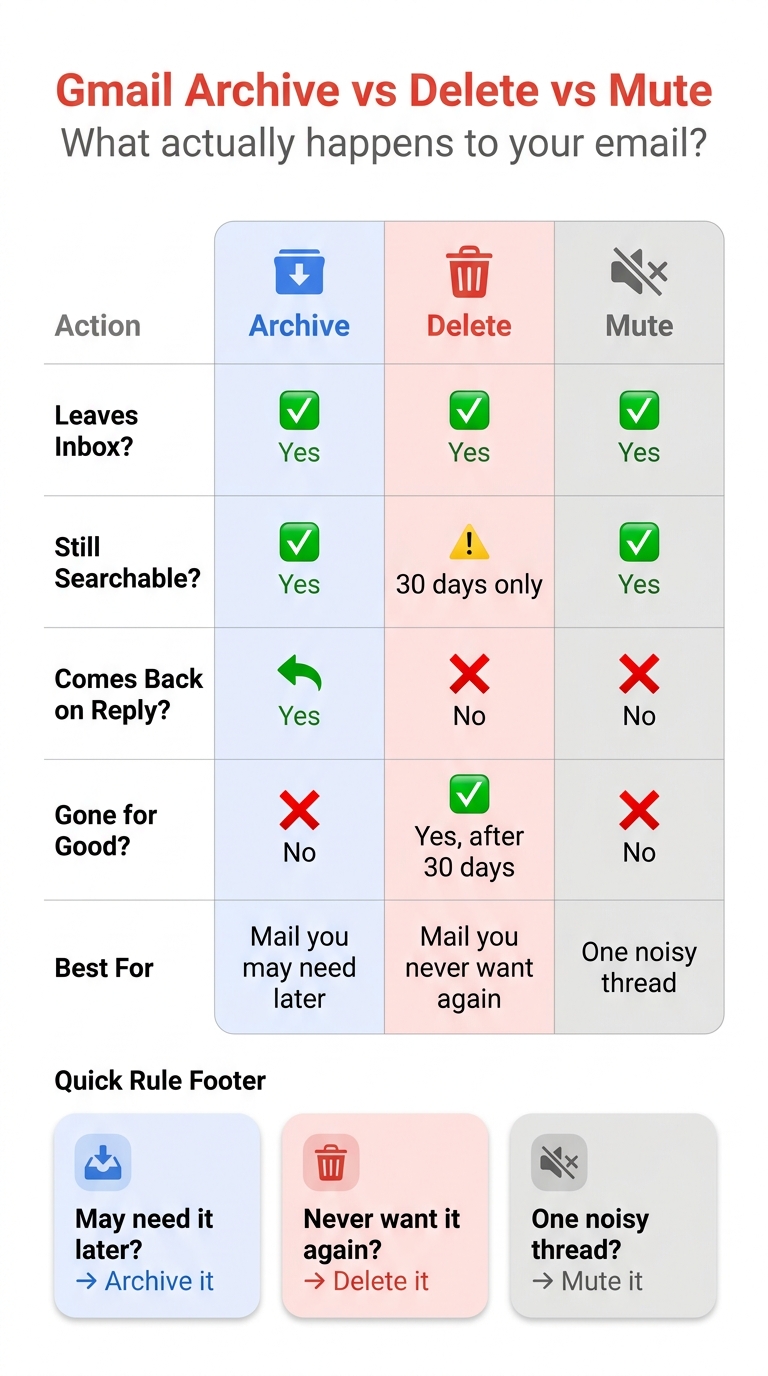
To put it simply: if I may need the message later, I archive it. If I never want it again, I delete it.
| Action | Leaves Inbox? | Still searchable? | Comes back on reply? | Gone for good? |
|---|---|---|---|---|
| Archive | Yes | Yes | Yes | No |
| Delete | Yes | For 30 days | No | Yes, after 30 days |
If I want a cleaner inbox without losing useful email, auto-archive is usually the best middle option.
How To Archive Emails Automatically in Gmail (Updated 2026)
How to set up a Gmail filter to skip the inbox
Once you know how archiving works, the next move is to turn it into a rule. Gmail filters let you send newsletters, alerts, and other low-priority messages straight to archive, so your inbox stays less cluttered.
Create a filter from Gmail search
Open Gmail search and set the criteria you want the rule to match. You can use fields like:
- From - a sender address or domain, like a newsletter or notification sender
- To - a recipient address or alias
- Subject - keywords like "receipt", "shipped", or "newsletter"
- Has the words - phrases that show up in repeat updates or mailing-list emails
- Doesn't have - terms that leave out messages you still want in the inbox
- Size - message size
- Has attachment - messages with attachments
After that, create the filter and check Skip the Inbox (Archive it). Any matching message will bypass the inbox on its own.
If the message is already sitting in your inbox, you can use that email as the filter source instead.
Create a filter from an existing email
If you already have a repeat message in front of you, build the filter from that email instead of starting from search. It's a faster route when the same unwanted message keeps showing up. Then check Skip the Inbox (Archive it) to send similar messages straight to archive.
How to edit or delete filters later
Sometimes a filter grabs the wrong mail. Other times, it misses messages you meant to catch. When that happens, open Gmail settings, edit the rule, or delete it so your archive rules stay on track.
How to use labels and filter patterns to keep archived mail organized
Once a filter skips the inbox, labels make archived mail much easier to manage later. Instead of throwing everything into one messy archive, labels give those messages a place to live. That matters because archived mail is still searchable, and labels make that search a lot less painful.
When you pair Skip the Inbox with Apply the label, Gmail can sort newsletters, automated alerts, and repeat CC threads as they arrive. You stay out of the clutter, but the messages are still easy to pull up when you need them.
Apply a label while archiving
Add the label at the same time you build the filter. Set up labels for the groups you want to check later, then choose both actions: Skip the Inbox (Archive it) and Apply the label. The email never lands in your inbox, but it still shows up under the label you picked.
Build rules by sender, subject, and list patterns
The Gmail field you choose changes how broad the rule will be. Broad rules catch more messages. Narrow rules are usually safer.
| Rule Type | Gmail Fields to Use | Best Use Case | Main Caveat |
|---|---|---|---|
| Sender-based | From | Mail from a specific sender or organization | May catch all mail from that source |
| Subject keyword | Subject | Recurring topics or routine updates | Common words may match unrelated mail |
| Mailing list signals | Has the words | Bulk mailing lists and newsletters | Matching clues can be inconsistent |
| Promotional phrases | Has the words | Promotional or marketing-style messages | Some useful newsletters may get caught |
| CC/thread patterns | Subject or Has the words | FYI-only CC threads and routine updates | Easy to archive something that still needs attention |
A good place to start is with sender rules. After that, add subject or keyword patterns for newsletters and repeat updates. That way, messages you may need to answer still have a better chance of hitting the inbox.
CC threads need extra care. They often look alike, which makes it easy to send the wrong message straight to archive.
Handle recurring CC threads and low-priority updates
CC threads often bring information you only need for background. Filters can keep those FYI-style threads out of the inbox while still letting action items show up where you’ll see them.
Start narrow. If the rule misses messages you wanted archived, widen it bit by bit.
Advanced Gmail cleanup options and using NeatMail for broader automation
When one email thread keeps popping back up, deal with the conversation itself instead of setting up a broader rule.
Mute threads that keep coming back
If a single thread is noisy, mute that conversation instead of building a filter. Mute keeps one thread with constant replies out of your inbox without changing any of your filter rules. Use Mute for one conversation. Use filters when the same pattern shows up across many emails.
Use NeatMail to auto-label and auto-archive clutter
If your inbox mess follows repeat patterns across different senders, automation makes more sense. If it's just one conversation, stick with Mute.
NeatMail can auto-label and auto-archive low-value email in Gmail and Outlook without making you write rules by hand. It also flags follow-ups and commitments, then files those threads under a Follow up label so they don't get lost [2].
Which NeatMail plan covers archive rules
Both paid plans include archive rules. The main difference is how much volume each plan allows.
| Plan | Monthly Price (USD) | Archive Rules | Mailboxes |
|---|---|---|---|
| Pro | $7.50/month | 25 | 1 |
| Max | $15.83/month | Unlimited | 2 |
Pro costs $90/year, and Max costs $190/year [1]. Pick the plan based on how many archive rules you want and how many mailboxes you need.
Conclusion: Keep the inbox clear without losing useful email
Once your archive rules are set, keep them simple. Use Gmail filters to archive low-value messages, add labels or folders so you can sort them later, and mute only a single noisy thread when that's all you need.
If manual rules start to feel like too much work, automation can handle the repeat cleanup. For busier inboxes, NeatMail automates labeling, archiving, and follow-up tracking as patterns shift.
The payoff is pretty clear: fewer inbox distractions, faster review of important replies, and archived messages stay searchable in Gmail. So your inbox stays clean without putting anything out of reach later.
FAQs
Can I auto-archive emails without missing important ones?
Yes. But don’t set it and forget it.
Test each filter for 2 weeks before you trust it. During that time, do a 3-minute daily scan of your archived emails so you can spot any false positives before they turn into a headache.
To keep important messages out of the archive, add exception rules or use Gmail’s Doesn't have field. Once the 2-week test period is over, you can cut those checks back to twice a week.
What’s the difference between archiving and muting in Gmail?
Archiving takes an email out of your inbox but keeps it in your account under All Mail. So it’s out of the way, not gone. You can still find it later with search.
Muting works a bit differently. It’s meant for email threads. When you mute a conversation, future replies go straight to your archive instead of landing in your inbox. That means the thread keeps moving, but it stops popping up and breaking your focus.
How do I find an email after it skips my inbox?
When an email skips your inbox, Gmail doesn’t delete it. It archives it.
If your filter adds a label, check that label in the Gmail sidebar. That’s often the fastest place to find the message.
If no label was added, open All Mail. It shows every email that hasn’t been deleted. You can also use Gmail search to track it down by sender, subject, or a keyword from the message.