







If you manage more than one inbox, the short answer is this: Gmail is better for search and flexible labeling, while Outlook is better for seeing multiple accounts in one place and sorting mail into folders.
I’d boil the whole comparison down to 6 things that matter most:
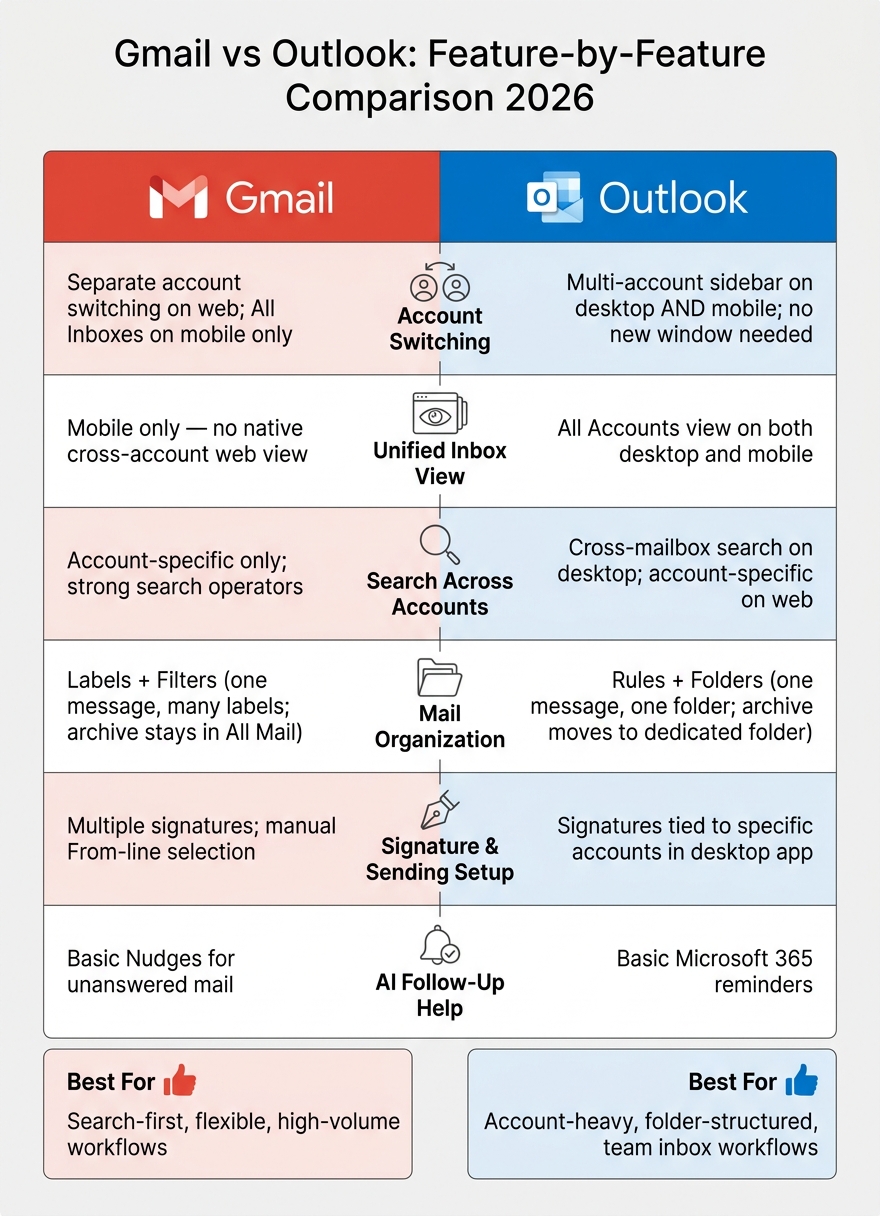
- Account switching: Outlook is easier on desktop because multiple accounts sit in one sidebar. Gmail web still splits accounts apart.
- Unified inbox view: Gmail gives you All Inboxes on mobile, but not on the web. Outlook offers an All Accounts view on desktop and mobile.
- Search: Gmail has strong search operators, but only inside the account you’re using. Outlook desktop can search across mailboxes at once.
- Mail sorting: Gmail uses filters + labels. Outlook uses rules + folders (see the best email filters and folders for both).
- Sending setup: Gmail supports multiple signatures and “Send mail as,” but you still choose the right sender manually. Outlook desktop can tie signatures to accounts.
- AI follow-up help: Gmail and Outlook offer basic reminders, but neither tracks promised replies from start to finish. NeatMail fills that gap.
For most people, the choice is simple:
- Pick Gmail if you search for old emails all day and don’t want to file everything by hand.
- Pick Outlook if you want your accounts in one place and prefer folder-based mail handling.
- Use an extra tool if follow-ups and deadline-based replies are a big part of your job.
A 2026 inbox setup often means handling 2, 3, or more accounts at once. And when that happens, small workflow differences start to matter fast.
Microsoft Outlook vs. Gmail: Which One is Better? (2026)
Quick Comparison
| Area | Gmail | Outlook |
|---|---|---|
| Account switching | Separate account switching on web | Multi-account sidebar on desktop and mobile |
| Unified view | Mobile only | Desktop and mobile |
| Search across accounts | No | Yes, on desktop |
| Organization style | Labels and archive | Folders and rules |
| Signature setup | Multiple signatures, manual pick | Account-linked signatures in desktop app |
| AI follow-up help | Nudges (or AI follow-up tools) | Microsoft 365 reminders |
If I were choosing based on daily inbox work alone, I’d say Gmail fits search-first workflows, and Outlook fits account-heavy, folder-first workflows.
Account switching, shared view, and search across accounts
Switching between inboxes and sending identities
Gmail on the web makes you switch Google accounts or open separate browser profiles. So you’re moving between inboxes, not seeing everything in one place. Gmail’s mobile app does offer All Inboxes, but the web app doesn’t have a built-in cross-account view.
Outlook feels more unified, especially on desktop. You can add multiple accounts to one sidebar and switch between them without opening a new window. Its All Accounts view pulls mail together across desktop and mobile. If you send from different addresses all day - say, a personal Gmail account and a work Microsoft 365 address - that setup means less friction. Shared mailboxes are also built in, which gives Outlook an edge for team inboxes.
Once moving between accounts feels easy, the next thing that matters is search. Can you find the message you need without hunting for it?
Search speed and message retrieval across accounts
Gmail search is fast and supports strong operators, but it only works inside the account you’re using at that moment. If you search your work Gmail, you won’t see results from your personal inbox.
Outlook’s desktop client can search across all mailboxes at once. That’s a clear plus when you’re trying to find an old thread or a contract attachment and can’t remember which account got it. Outlook on the web is closer to Gmail here: it’s more account-specific than the desktop app. Attachments follow the same pattern. Gmail relies on per-account search, while Outlook’s Files view can pull up attachments across accounts.
Here’s the practical split at a glance.
| Feature | Gmail | Outlook |
|---|---|---|
| Account switching | Switch Google accounts or use separate browser profiles on web; All Inboxes on mobile | Single sidebar on desktop and mobile; switch without a new window |
| Unified view | Mobile only; no native cross-account web view | All Accounts view on desktop and mobile |
| Search scope | Account-specific; strong operators | Cross-mailbox on desktop; account-specific on web |
| Attachment retrieval | Search-based, per account | Files view pulls together attachments across accounts on desktop |
That search edge matters less if incoming mail still needs manual cleanup. Search is only one part of the workflow; the next gap comes down to how each app sorts incoming mail.
How Gmail and Outlook organize mail: filters and labels vs rules and folders
After search, organization is what decides how much cleanup you’ll keep doing day to day. Gmail leans on labels and archive. Outlook leans on rules and folders. If you manage several inboxes, that difference matters a lot. The main issue is simple: can you still scan messages easily without filing everything by hand?
How Gmail organizes mail with filters, labels, and archive
Gmail uses labels instead of folders. That means a single message can have multiple labels at the same time, and filters can add those labels on their own using search-style conditions.
Archive works a little differently too. It removes the Inbox label, but the message still stays in All Mail and remains searchable. So if you’re the kind of person who thinks, “I’ll just find it later,” Gmail fits that habit well.
How Outlook organizes mail with rules and folders
Outlook uses a folder-based setup. Rules move messages into folders, and each message lives in one folder at a time. You can build a folder hierarchy and send incoming mail there without touching it yourself.
When a message moves into a folder, it disappears from your main view. Outlook’s Archive also works in a more direct way: it sends mail to a separate Archive folder. In plain English, archiving feels more visible and deliberate than it does in Gmail.
Which model creates less ongoing cleanup
The difference makes more sense when you look at both side by side.
| Feature | Gmail (Filters & Labels) | Outlook (Rules & Folders) |
|---|---|---|
| Storage model | Non-exclusive - one message, many labels | Exclusive - one message, one folder |
| Setup effort | Low; uses search-style filters | Moderate; requires building a folder hierarchy |
| Automation depth | High; complex search operators | High; multi-step server-side rules |
| Visibility after sorting | High; messages appear in multiple label views | Lower; messages are hidden inside subfolders |
| Archiving behavior | Removes Inbox label; stays in All Mail | Moves to a dedicated Archive folder |
| Best for high-volume inboxes | Search-first, flexible workflows | Structured, project-based filing that is harder to rearrange |
For high-volume inboxes, Gmail’s label system tends to need less day-to-day upkeep because the same message can stay visible in more than one place. That’s a big deal when one email belongs to a client, a project, and a deadline all at once.
Neither system tracks commitments inside threads. That gap is where NeatMail fits: it tracks commitments in Gmail and Outlook and drafts follow-up replies when deadlines arrive.
Signatures, sending setup, and AI help with follow-ups
Once you’ve opened the right inbox, the next snag is simple but annoying: sending from the right identity and keeping track of who needs a reply.
Multiple signatures and account-specific sending
If you bounce between client, team, and personal accounts all day, signature mix-ups can happen fast.
Gmail lets you save multiple signatures and swap them inside Compose. Its "Send mail as" option also lets you send from another address, but you still need to choose the From line yourself.
Outlook can connect signatures to specific accounts in the desktop app, which helps cut down on wrong-address sends. But you still need to choose the right identity.
Once sending is set up, the bigger issue is follow-up timing.
Where AI assistants fit into Gmail and Outlook workflows
Gmail gives you Nudges for unanswered emails, and Outlook includes basic Microsoft 365 reminders. Both can remind you that a message is sitting there. But neither one tracks a promise all the way to a planned reply.
That’s where NeatMail comes in: it spots commitments inside threads and drafts follow-up replies when deadlines arrive.
Here’s the point where the built-in tools tap out and AI help steps in:
| Feature | Gmail (Native) | Outlook (Native) | NeatMail |
|---|---|---|---|
| Signature flexibility | Multiple signatures; manual switch in Compose | Multiple signatures; can be tied to specific accounts in the desktop app | - |
| Account-based sending | "Send mail as" aliases; manual From selection | Supports multiple accounts; defaults to the active inbox's address | - |
| Follow-up support | Basic Nudges for unanswered mail | Basic Microsoft 365 reminders | Drafts follow-up replies when deadlines arrive |
Which setup fits your workflow
Once you’ve dealt with switching, search, and sorting, one question is left: which model actually fits the way you work every day?
Gmail tends to work better for search-heavy workflows where conversations overlap and you jump between threads. Outlook is usually a better fit if you like clear folder-based separation and prefer to route mail into folders before opening it.
NeatMail helps with the follow-up gap in either setup. It tracks commitments and drafts replies when deadlines come up. So the last call is pretty simple: choose the inbox structure that feels natural to you, then let AI take care of the follow-up work.
FAQs
Which is better for managing multiple email accounts?
It comes down to how you handle noise and keep the same workflow across accounts. Both Gmail and Outlook do this well. They each give you strong tools to sort and organize mail - Gmail uses labels, and Outlook uses folders.
NeatMail fits into Gmail or Outlook and helps you keep that workflow the same across accounts. It can auto-label messages, archive routine email, and track follow-ups, so you can spend your time on the messages that need human judgment.
Can Gmail show all my accounts in one inbox on desktop?
No. Gmail on desktop does not offer one combined inbox for all signed-in accounts.
You can stay logged in to multiple Google accounts and switch between them from the account menu. But each inbox remains separate.
If you want to keep things tidy, you can use labels and filters inside each account to sort messages.
Do Gmail or Outlook automatically track follow-ups?
No. Native Gmail and Outlook don't track follow-ups on their own.
They give you basic filters and rules. But they don't scan email threads, spot promises or commitments, or set follow-up reminders for you.
NeatMail adds that layer to Gmail or Outlook. It detects promises inside email threads, tracks them under a Follow up label, and drafts follow-up replies when deadlines arrive.