







If you want an inbox tool that does work on its own, only a few of these six options do more than summarize or filter.
I’d break the list into three groups:
- Background inbox automation: NeatMail
- Read-and-reply help: Microsoft Copilot for Outlook and Gemini in Gmail
- Bulk cleanup or fixed rules: Clean Email, Spark Mail, and Gmail Filters / Outlook Rules
Here’s the short version:
If you want follow-up tracking, auto-labeling, and archive rules, NeatMail is the one aimed at that job. If you want thread summaries and draft help, Copilot and Gemini fit that use case. If you want bulk cleanup or if-this-then-that sorting, Clean Email and built-in rules make more sense.
The article compares each tool across 4 core checks:
- Sorting: Does it sort mail by intent, category, or fixed rules?
- Organization: Does it apply labels, folders, or categories on its own?
- Follow-up: Does it track promises, deadlines, or replies due?
- Privacy and cleanup: Where is email processed, and can the tool archive mail for you?
A few hard facts stand out:
- 6 tools are covered
- 4 comparison areas are used across all of them
- NeatMail Pro starts at $7.50/month when billed yearly
- NeatMail Max is $15.83/month when billed yearly
- Clean Email starts at $9.99/month
- Built-in Gmail Filters and Outlook Rules cost $0 extra
Quick Comparison
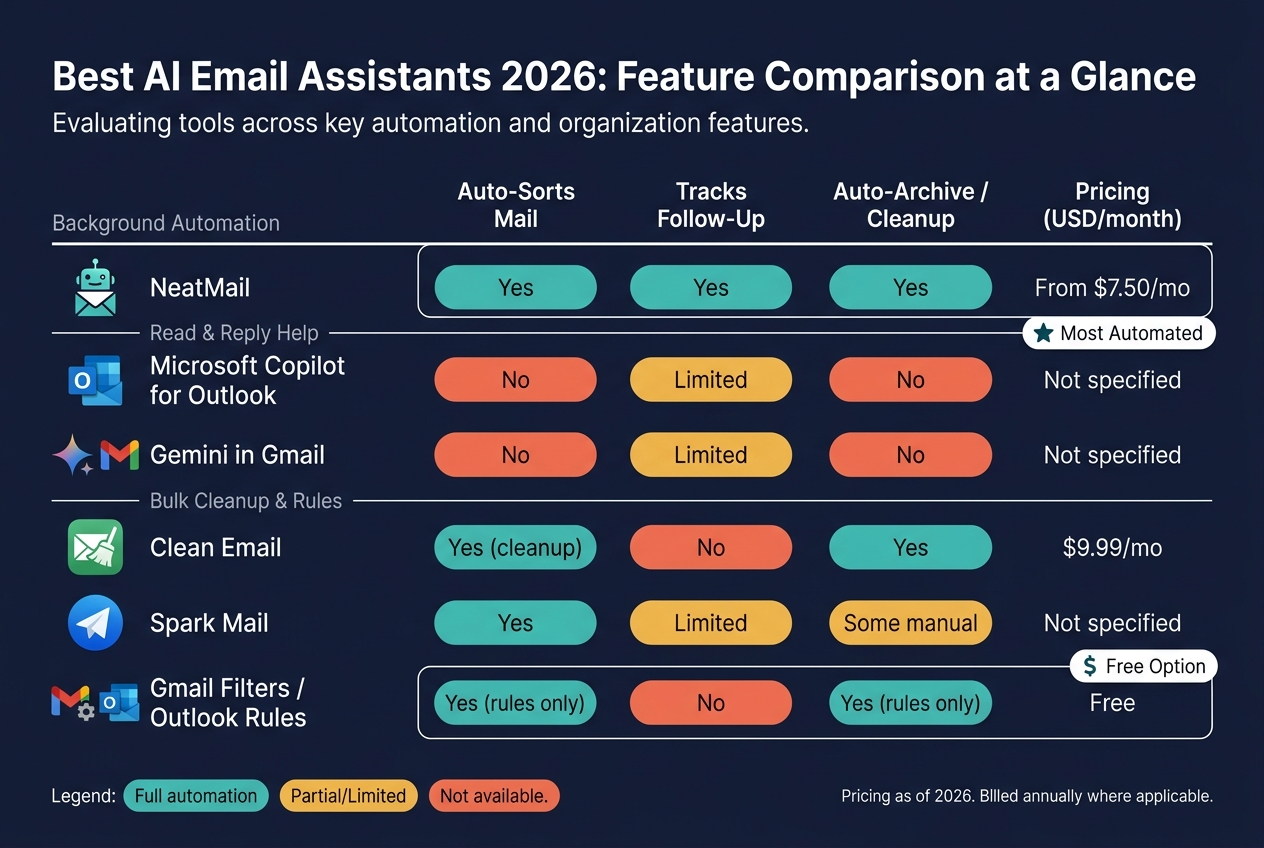
| Tool | What it mainly does | Auto-sorts mail | Tracks follow-up (see best AI follow-up tools) | Auto-archive or cleanup |
|---|---|---|---|---|
| NeatMail | Labels commitments and drafts follow-ups | Yes | Yes | Yes |
| Microsoft Copilot for Outlook | Summarizes threads and drafts replies | No | Limited | No |
| Gemini in Gmail | Summarizes, answers, and drafts in Gmail | No | Limited | No |
| Clean Email | Bulk cleanup and smart filtering | Yes, for cleanup | No | Yes |
| Spark Mail | Smart Inbox in its own mail app | Yes | Limited | Some manual controls |
| Gmail Filters / Outlook Rules | Fixed rule-based sorting | Yes, by rules | No | Yes, by rules |
My takeaway is simple: if you care about reading email faster, pick a summary tool. If you care about getting fewer things stuck in your inbox, pick a tool that labels, routes, and follows up in the background.
Below, I’ll walk through what each one actually automates - and where each one stops.
1. NeatMail
NeatMail runs inside your current Gmail or Outlook account through OAuth. Its main draw is pretty simple: it turns email commitments into labels, follow-ups, and inbox cleanup.
Sorting Automation
NeatMail is built around a different way to sort email. Instead of sorting by sender or date, it sorts by commitments and follow-ups.
The AI scans incoming and outgoing threads in real time and looks for promises made by you or to you.
Labels, Folders, and Categories
Incoming emails are labeled automatically as Action Needed or Pending Response. Any promise you make or receive gets placed into one Follow up label.
That gives you one clear spot to check when something needs attention, without setting up manual rules.
Priority and Follow-Up Handling
When a deadline arrives, NeatMail drafts a follow-up reply for you. It also sends a morning brief with everything due that day.
Smart Attachments looks through files already in your inbox - like proposals, invoices, or signed contracts - and adds the right ones to the draft. It’s the kind of thing that saves time without much fuss.
That same automation helps cut down inbox clutter too.
Auto-Archive and Privacy
If you mute a sender once, future messages from that sender stay out of your inbox. Auto-archive rules can work from labels, senders, or categories.
The Pro plan includes 25 archive rules. The Max plan includes unlimited rules.
NeatMail is CASA Tier 2 verified and uses read-only OAuth, so your password never touches its servers. It stores no email content. Its source code is available under the Elastic License 2.0, which means you can self-host it on your own infrastructure for free.
2. Microsoft Copilot for Outlook
Microsoft Copilot for Outlook is built more for reading help than hands-off inbox management. It helps you get through email faster by summarizing long threads and pulling out action items and promises, but it doesn't reorganize your inbox on its own.
Sorting Automation
Copilot can shorten long email chains into quick summaries and point out what needs attention. That makes inbox triage faster. For those managing high volumes, achieving Inbox Zero with 100+ emails a day requires this kind of AI-assisted speed.
But you still make the call on where messages should go. Copilot helps with the decision. It doesn't move emails around in the background.
Labels, Folders, and Categories
Copilot does not create or manage Outlook folders or categories. If you already have a system in place, it stays as-is.
Priority and Follow-Up Handling
Copilot surfaces action items from long threads in short summaries. That can make follow-up work easier, especially when a thread has gone on for a while and the next step isn't obvious at first glance.
Auto-Archive and Privacy
Copilot does not auto-archive email. It processes mail on Microsoft's servers inside Microsoft 365.
Next, Gmail's native AI takes a similar review-first approach inside Gmail.
3. Gemini in Gmail
Gemini in Gmail works best as a read-and-reply assistant. When you open it, it can summarize email threads, draft replies, and answer questions about what’s in your inbox. That makes it handy for triage, but it doesn’t run your inbox for you.
Sorting Automation
Gmail’s category tabs still do the first round of sorting. Gemini does not sort messages on its own.
Labels, Folders, and Categories
The same issue shows up with labels. Gemini does not automatically create or apply labels to incoming Gmail messages.
Priority and Follow-Up Handling
Gemini can bring urgent threads to the surface, but it does not assign follow-up tasks.
Auto-Archive and Privacy
That tradeoff goes beyond automation. Because Gmail processes mail on Google’s servers, privacy depends on your Google account and Workspace settings. That matters most if you deal with sensitive mail.
4. Clean Email
Clean Email takes a different route. Instead of helping you read, reply, and work active conversations, it focuses on bulk cleanup and filtering. It works as a bulk-cleanup service with smart filtering for Gmail and Outlook. So if your inbox feels packed to the ceiling, it can help cut the volume down. What it doesn't do is manage live email threads like an assistant would.
Sorting Automation
It automates bulk cleanup and filtering for large inboxes.
Labels, Folders, and Categories
Clean Email does not apply labels, create folders, or assign categories to individual messages. Instead, it cuts inbox volume through filtering rules, not through a structured workflow for organizing mail.
Priority and Follow-Up Handling
It does not manage priority triage or follow-up workflows. There is no task tracking or reply drafting.
Auto-Archive and Privacy
Clean Email does not store email content on its servers beyond what is needed to process filtering requests. Plans start at $9.99 per month.
It can help clear inbox clutter fast, but it doesn't handle labels, priorities, or follow-ups the way a true assistant does. Next comes a more hands-on email client.
5. Spark Mail
Next, let’s look at Gmail Filters and Outlook Rules, the built-in way each platform handles rule-based inbox sorting.
6. Gmail Filters and Outlook Rules
Gmail Filters and Outlook Rules are built-in sorting tools based on fixed rules. You set them up once, and every matching email gets the same action until you change the rule. The big idea is simple: you control the logic, and the tool only follows what you told it to do.
Sorting Automation
This kind of automation is fully rule-based. That makes it dependable for fixed patterns, like recurring newsletters or receipts. But it can also be fragile. If a sender changes their email address or a subject line shifts even a little, the rule may stop working.
Labels, Folders, and Categories
| Rule Category | Gmail Filter Criteria | Outlook Equivalent Action |
|---|---|---|
| Newsletters | Has words: "unsubscribe" | Move to: Newsletters |
| Finance | Subject: "invoice" OR "receipt" | Move to: Finance |
| Orders | Subject: "shipping confirmation" | Move to: Orders |
Priority and Follow-Up Handling
These tools don't track promises, deadlines, or reply needs. They also don't draft follow-ups. What they can do is help with basic reminders.
Auto-Archive and Privacy
You can set a filter to skip the inbox and archive matching mail right away. The mail stays inside Google or Microsoft infrastructure, so privacy comes down to your account settings and, in work setups, your admin settings.
That makes Gmail Filters and Outlook Rules the starting point for inbox control before AI-driven sorting comes into play.
How These Tools Differ Across Four Key Areas
After the tool-by-tool breakdown, this table makes the differences easier to see. It shows what each tool automates at four decision points: sorting, organization, follow-up, and privacy.
Sorting Automation
The main split here is simple: some tools use AI to read intent, while others rely on fixed rules.
| Tool | Sorting Method | AI Classification | Triage Style |
|---|---|---|---|
| NeatMail | Real-time AI labeling | Yes - intent-based | Action Needed / Pending Response |
| Microsoft Copilot for Outlook | Focused Inbox / Priority | Yes - summarization-based | Priority-based |
| Gemini in Gmail | Tabbed / Priority sorting | Yes - context-aware | Priority-based |
| Clean Email | Smart Folders | Yes - category-based | Bulk-action based |
| Spark Mail | Smart Inbox | Yes - sender/type-based | Category-based |
| Gmail Filters / Outlook Rules | Fixed criteria | No | Rule-based only |
Labels, Folders, and Categories
This is where native inbox structure and manual routing start to part ways.
| Tool | Auto-Applies Labels/Folders | Custom Organization | Native App Support |
|---|---|---|---|
| NeatMail | Yes - auto-labels incoming mail | Unlimited custom labels | Yes |
| Microsoft Copilot for Outlook | Native Outlook folders/categories | Focused Inbox / priority views | Yes (Outlook native) |
| Gemini in Gmail | Native Gmail tabs / priority sorting | Tabs / priority sorting | Yes (Gmail native) |
| Clean Email | Yes - Smart Folders | Smart filtering | Via web dashboard |
| Spark Mail | Yes - Smart Inbox categories | Smart Inbox | Via third-party client |
| Gmail Filters / Outlook Rules | Rule-triggered routing | Fixed rules only | Yes |
Priority and Follow-Up Handling
Follow-up is where the gap becomes easiest to spot. Some tools only surface what looks urgent. Others go a step further and track commitments or prompt action later.
| Tool | Urgency/Promise Detection | Commitment Tracking | Follow-Up Mechanism |
|---|---|---|---|
| NeatMail | AI scans for promises | Automatic Follow up label | Drafts replies when deadlines hit |
| Microsoft Copilot for Outlook | AI summarization & priority | General task extraction | Manual nudges |
| Gemini in Gmail | AI summarization & priority | General task extraction | AI-suggested nudges |
| Clean Email | Smart sorting by category | Manual triage | Reminders for un-replied mail |
| Spark Mail | Priority sorting | Manual flags/reminders | Snooze and follow-up reminders |
| Gmail Filters / Outlook Rules | Fixed rules only | No | Manual reminders or snooze |
Auto-Archive and Privacy
The last split is about where automation stops and provider control starts. Cleanup, account access, and how email data is handled vary quite a bit from one tool to the next.
| Tool | Cleanup Automation | Account Access | Privacy / Security | Pricing (U.S.) |
|---|---|---|---|---|
| NeatMail | Mute sender; auto-archive rules | Read-only OAuth | CASA Tier-2 verified [1] | Pro: $7.50/mo; Max: $15.83/mo billed annually [1] |
| Microsoft Copilot for Outlook | Rule-based | Native M365 | Processes mail on Microsoft servers within Microsoft 365 | Not specified |
| Gemini in Gmail | Rule-based | Native Workspace | Processes mail on Google servers within Workspace | Not specified |
| Clean Email | Auto-clean rules | OAuth / IMAP | Privacy-focused; does not store email content beyond processing [2] | $9.99/mo [2] |
| Spark Mail | Manual rules | OAuth / IMAP | Processes mail on Spark's servers | Not specified |
| Gmail Filters / Outlook Rules | Manual rules only | Native provider | Does not use AI to read message content | Not specified |
Pros and Cons of Each Tool
Here’s the trade-off at a glance.
| Tool | Best For | Main Strengths | Main Limitations | Privacy/Control Notes |
|---|---|---|---|---|
| NeatMail | Commitment tracking + inbox automation | Runs in the background[1]; tracks commitments under a "Follow up" label | Full automation needs a paid plan | Correcting labels helps future classification[3] |
| Microsoft Copilot for Outlook | Outlook users who want on-demand AI help | On-demand assistance[1] | No background automation[1] | Processes mail in Microsoft 365 |
| Gemini in Gmail | Gmail users who want on-demand AI help | On-demand assistance[1] | No background automation[1] | Processes mail in Google Workspace |
| Clean Email | Bulk inbox cleanup | Simple bulk cleanup, smart filters, and auto-clean rules | Needs manual rule setup; no commitment or follow-up detection | Privacy-focused[2]; $9.99/month[2] |
Conclusion
The best tool comes down to what you want automated in your inbox. The main split is pretty simple: do you want basic cleanup, or do you want your inbox to handle work in the background for you?
For rule-based sorting and bulk cleanup, Clean Email stands out with smart filters and bulk actions at $9.99/month [2]. If all you need is on-demand summaries and draft help, a prompt-based assistant will do the job.
Where the choice gets a bit more specific is follow-up tracking and background automation. NeatMail is built to surface obligations, not just messages. It runs in the background, auto-labels incoming mail, detects commitments in threads, and files them under a "Follow up" label before you even open your inbox [1].
For sales teams and power users who want background labeling, follow-up tracking, and auto-archive automation, NeatMail is the most complete fit [1]. So the real decision isn't about AI branding. It's about which inbox tasks you want handled automatically.
FAQs
Which tool actually automates follow-ups?
NeatMail automates follow-ups by reading email threads and spotting commitments made by you or other people. It then tracks those conversations under a Follow up label, so they stay time-stamped and easy to prioritize.
When a deadline hits, NeatMail drafts a reply in your voice using the right context from the thread. You review the draft, make any edits you want, and send it.
Can I use NeatMail without changing email apps?
Yes. NeatMail works with your current Gmail or Outlook account, so you don't need to switch apps.
Labels, drafts, and follow-up tracking show up right inside the email client you already use. That means no new interface to learn and no extra client to install.
How should I compare privacy before connecting my inbox?
Prioritize services that use read-only OAuth authentication. That way, your password never touches their servers.
It also helps to choose tools that clearly say they’ve been audited and built for the security needs of modern teams.
Some assistants only analyze email metadata and ignore message bodies to limit exposure. That can reduce risk, but there’s a trade-off: the tool may miss specific commitments buried in your threads. Source-available or self-hostable options can give you more transparency too.