







If I want mail from a sender to skip my inbox on every device, I’d usually pick Gmail Filters. Gmail runs filters on Google’s servers, so they keep working in Gmail web, iPhone, and Android. Outlook can do the same, but I need to use Outlook on the web or new Outlook for Windows so the rule stays server-side.
Here’s the short version:
- Gmail archive = removes the Inbox label and keeps mail in All Mail
- Outlook archive = moves mail to the Archive folder
- Gmail mobile apps can follow filters, but I can’t create or edit them there
- Outlook mobile apps can follow server-side rules, but I can’t create or edit them there either
- Gmail has a stated cap of 500 filters per account
- Outlook uses a 256 KB mailbox rule storage quota
- Both can fail with no alert if I set the wrong sender match or run into rule conflicts
If I only care about sender-based auto-archive, the choice is simple: Gmail is more consistent across devices, while Outlook fits people who want archived mail moved into a folder.
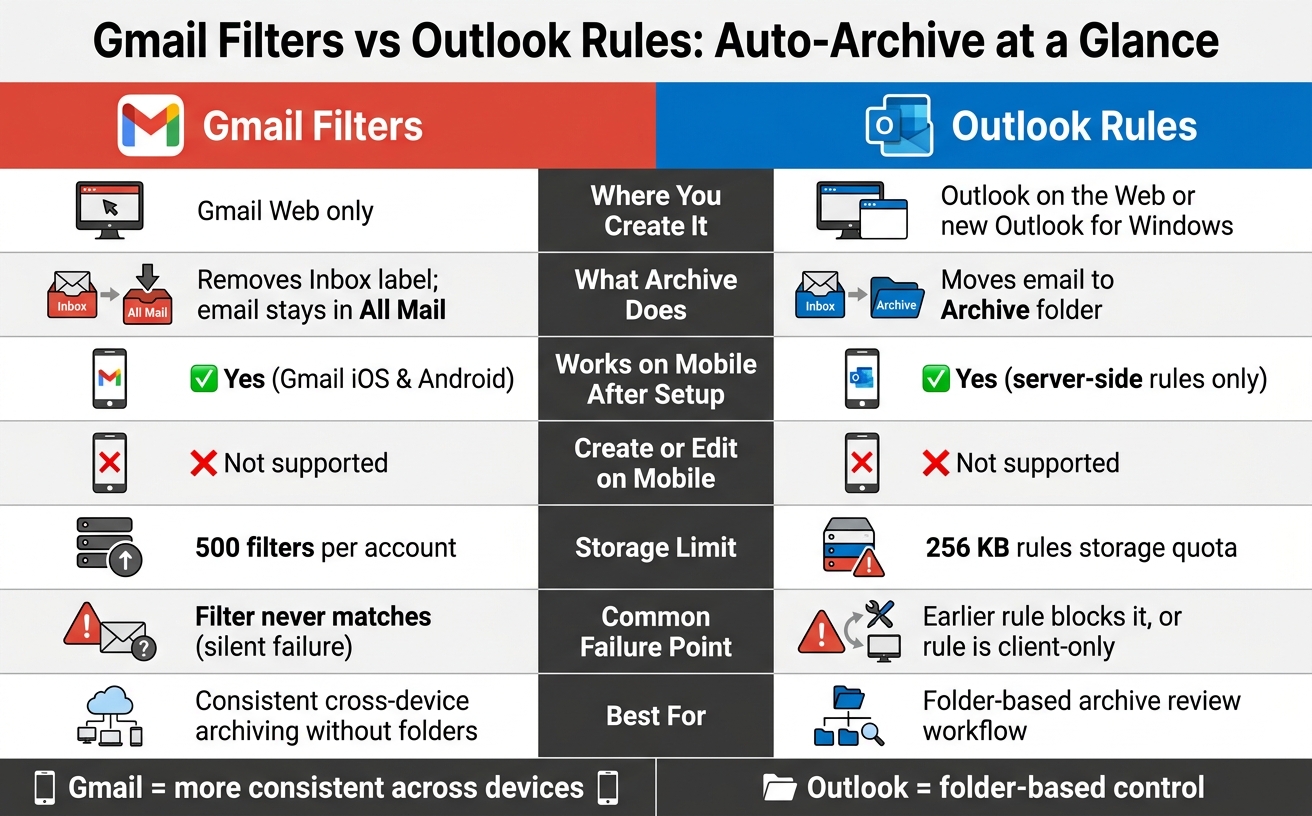
How to use Gmail Filters & Rules - Tutorial for Beginners
Quick Comparison
| Criteria | Gmail Filters | Outlook Rules |
|---|---|---|
| Where I create it | Gmail web | Outlook on the web, new Outlook for Windows |
| What archive does | Removes Inbox label | Moves to Archive folder |
| Works on mobile after setup | Yes | Yes, for server-side rules |
| Create/edit on mobile | No | No |
| Main limit | 500 filters | 256 KB rules quota |
| Common issue | Filter never matches | Earlier rule blocks it or rule is client-only |
So before I build lots of rules, I’d start with one sender, test it, and then add more.
Gmail Filters: how auto-archive works by sender
A sender-based Gmail filter can auto-archive matching emails in Gmail web. And it keeps running in the background, even if Gmail web isn't open. That's a big reason Gmail is a solid starting point before you stack it up against Outlook Rules.
How to create a sender-based archive filter in Gmail web
Open mail.google.com in Gmail web and work through these steps:
- Click the Show search options icon.
- Enter the sender address or domain in From.
- Click Create filter.
- Check Skip the Inbox (Archive it).
- Optionally add a label.
- Check Also apply filter to matching conversations to archive existing mail.
- Click Create filter.
It's smart to preview matches before saving. A small typo can send the wrong messages out of your Inbox without much fuss.
What Gmail iOS and Gmail Android can and cannot do with filters
Gmail iOS and Gmail Android will apply filters you made in Gmail web, so matching mail skips the Inbox on mobile too. But neither app gives you a built-in screen to create or edit filters.
If you need to make changes on your phone, you'll have to open Gmail web in a mobile browser and request the desktop site. That's a bit clunky, especially if most of your inbox work happens on mobile.
Gmail Filter limits and where they break
Gmail allows a maximum of 500 filters per account [6]. To save space, you can group senders into one filter with OR logic or braces, such as {sender1@example.com sender2@example.com}.
The bigger issue is silent failure. Gmail doesn't warn you when a filter never matches. If you misspell the sender or set a condition that doesn't match how Gmail parses the message, the filter just sits there and does nothing.
There are a couple more limits to watch:
- Filters only act on incoming mail unless you check Also apply filter to matching conversations when you create the filter.
- A filter that looks right can still miss mail if the match condition is off by even a little.
Those are the pain points that stand out most when you compare Gmail with Outlook Rules.
Outlook Rules handle the same job differently.
Outlook Rules: how auto-archive works by sender
You can set up sender-based archive rules in Outlook on the web or new Outlook for Windows. These rules run on the server, which means they keep working even when your computer is off. Here’s the exact path in Outlook on the web.
How to create a sender-based archive rule in Outlook on the web
In Outlook on the web:
- Go to Settings > Mail > Rules and select Add new rule.
- Name the rule, set the condition to From, and enter the sender’s email address or domain.
- For the action, choose Move to and pick Archive.
- If you don’t want other rules to touch the same message, check Stop processing more rules.
- Save the rule.
Once you save it, the rule runs server-side for Microsoft-hosted accounts. So incoming mail keeps getting processed even if your PC is shut down.
How rules work in new Outlook for Windows
Rules created in new Outlook for Windows also run on the server. That’s the key difference.
Outlook iOS and Outlook Android will follow those server-side rules for incoming mail in the apps, but you can’t create or edit rules there. Classic Outlook for Windows is different: it can still use client-only rules, but those only work while the desktop app is open.
Outlook Rules limits and where they fail silently
Microsoft limits the number of Inbox rules per account [7]. So if you’re setting up lots of sender-based archive rules, don’t make one for every single address unless you have to. It’s often better to group several senders into one rule using OR logic.
Here are the failure points that matter most:
| Symptom | Likely cause |
|---|---|
| Rule never runs on new mail | A prior rule has Stop processing more rules checked |
| Rule stops working after edits | Complexity limit exceeded - too many conditions |
| Rule works on PC but not mobile | Rule is client-only, such as one that plays a sound or runs a script |
| Rule appears saved but does nothing | Rule quota reached or the sender condition doesn't match the actual message headers |
One small gotcha: forwarded messages can miss sender rules if the sender header changes.
Next, compare this with Gmail’s filter behavior.
Gmail Filters vs. Outlook Rules: side-by-side comparison
Now that the setup steps are clear, here’s how the two options stack up in day-to-day use.
For sender-based auto-archive, Gmail is more consistent across Gmail web, Gmail iOS, and Gmail Android. Outlook gets close, but only in Outlook on the web and new Outlook for Windows.
Which one works more consistently across web and mobile
Gmail filters run server-side, so they behave the same way across all Gmail clients without extra setup [3][6]. That means if you set a filter once in Gmail web, it keeps working whether you check mail on your laptop or your phone.
Outlook Rules are also server-side in Outlook on the web and new Outlook for Windows [4]. But there’s a catch: classic Outlook for Windows can use client-side rules, and those stop running when the app is closed. Outlook iOS and Outlook Android will follow rules that already exist, but you can’t create or edit those rules in the mobile apps [4].
Which option fits your inbox style
Pick Gmail if you want messages from a sender to leave the Inbox without dealing with folders. The email still stays in All Mail, so it’s not gone, just out of sight.
Pick Outlook if you want those messages moved into an Archive folder so you can review them later in one place.
Pros and cons table
Here’s the short version.
| Criterion | Gmail Filters | Outlook Rules |
|---|---|---|
| Setup surface | Gmail web only [6] | Outlook on the web and new Outlook for Windows [4] |
| Mobile creation | Not supported in Gmail iOS or Gmail Android [6] | Not supported in Outlook iOS or Outlook Android [4] |
| Archive behavior | Removes the Inbox label; message stays in All Mail [1] | Moves the message to the Archive folder [1] |
| Cross-client reliability | Works across web and mobile [3] | Works only in Outlook web and new Outlook for Windows [4] |
| Documented limit | 500 filters per account [6] | 256 KB rules storage quota per mailbox [5] |
| Common failure point | Overlapping filter actions can cause unexpected results [6] | Classic Outlook rules can stop when the app is closed [4] |
Tools that can cut down on manual inbox sorting
Use sender rules when they do the job. They’re simple, fast, and work well for fixed patterns. But once email sorting depends on context, native filters start to fall short. Some messages need a smarter read of what the thread is actually saying. That’s where an AI assistant can help.
NeatMail for Gmail and Outlook
NeatMail is an AI email assistant that works with your existing Gmail or Outlook account. It auto-labels incoming mail (using labels vs folders to improve search speed), auto-archives unwanted senders, and tracks commitments in email threads under a single "Follow up" label. It can spot commitments from both sides of a thread, which native filters can’t do because they sort by rules, not meaning. [2][7] In plain terms, it handles the gaps that native rules leave behind.
A simple way to split the work:
- Use Gmail filters (or a Gmail filter generator) and Outlook rules for fixed, sender-based sorting.
- Use NeatMail when the right action depends on context.
Conclusion: pick the simplest archive setup you will actually keep using
For sender-based archiving, go with the setup you can create on the web and then stick with across your devices. That’s the big difference here: where you can create the rule and which apps can only follow it.
You can’t create new filters or rules in Gmail iOS, Gmail Android, Outlook iOS, or Outlook Android. So if you want this to work without friction, build it in Gmail web or Outlook on the web or new Outlook for Windows first, then let your phone do the easy part and follow along. For most people, the web app is the safest place to set up that first filter or rule.
Keep it simple at the start. Set up archiving for one sender, then check that it archives the right messages before you add more.
If sender-based rules don’t go far enough, NeatMail can auto-archive unwanted senders and track commitments in a single Follow up label. Use native sender rules when the case is simple. Bring in NeatMail when the meaning of the message matters.
Choose the simplest archive setup you’ll keep using.
FAQs
Will archived emails still appear in search?
Yes. Archiving keeps messages searchable.
In Gmail, emails archived by filters, such as Skip the Inbox/Archive, can still be found through search and in All Mail.
In Outlook, Archive changes where the message shows up rather than deleting it, so mail moved there by rules still appears in search.
Why isn’t my filter or rule archiving new messages?
Usually, filters and rules only process new incoming mail. In some cases, another filter or rule can override the archive action. They may also stop working if the account hits storage limits or if the rule uses an action the app doesn't support.
In Gmail web, choose the option to apply the filter to existing conversations. In Outlook web or new Outlook for Windows, use Run rule now to process existing items.
Can I archive by domain instead of one sender?
Yes - you can do that.
In Gmail web, set up a filter with the domain in the From field, then choose Skip the Inbox. That keeps matching emails out of your main inbox without deleting them.
In Outlook web and new Outlook for Windows, make a rule where the sender address includes the domain, then send matching messages to the Archive folder.
Be careful with broad domain rules. In Outlook, rule order matters, and a domain-based rule can archive messages before a more specific rule gets a chance to run. In Gmail, overlapping filters can trigger actions that don't play nicely together.