







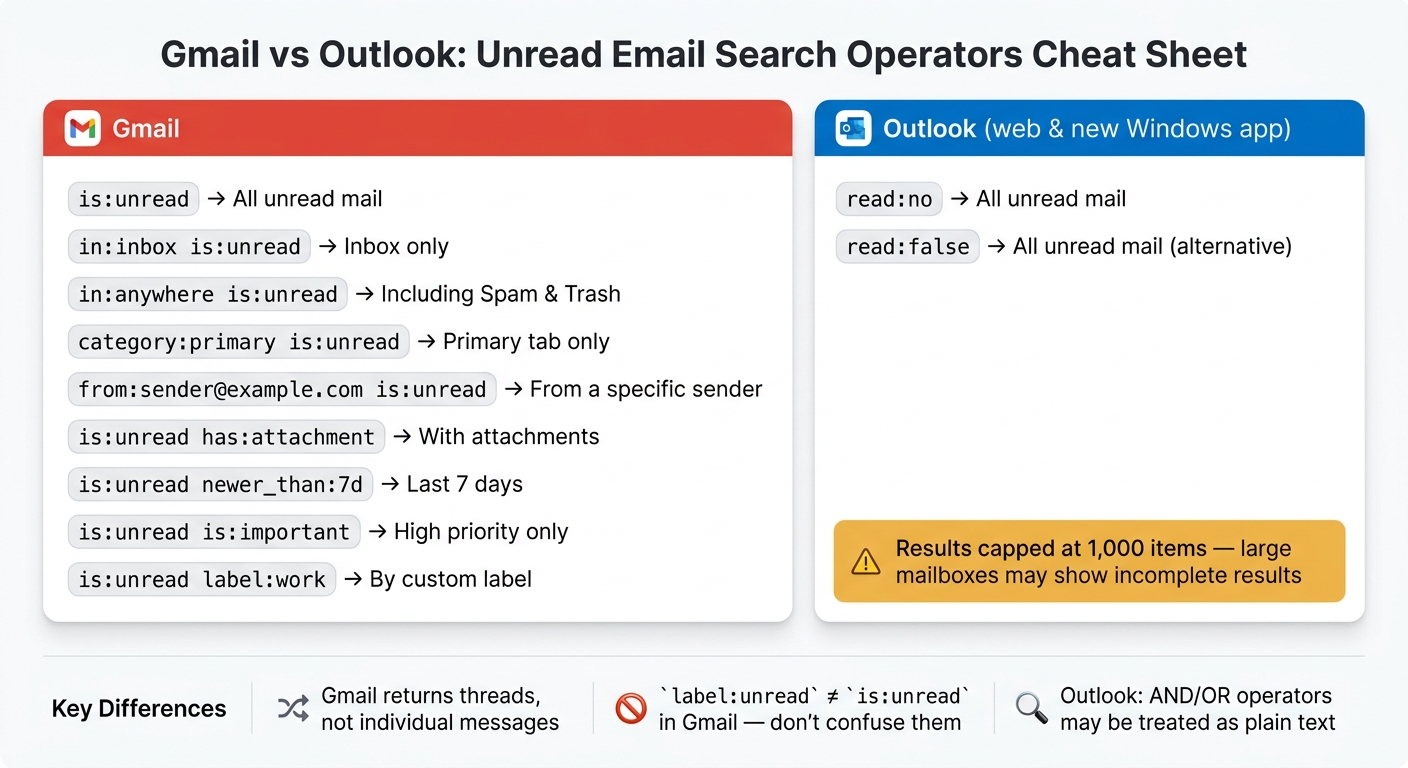
If you want every unread email in Gmail, search is:unread. That works in Gmail on web, iPhone, and Android. If you use Outlook instead, search read:no or read:false.
Here’s the short version:
- Gmail: use
is:unread - Inbox only: use
in:inbox is:unread - All folders, including Spam and Trash: use
in:anywhere is:unread - One sender: use
from:sender@example.com is:unread - Unread emails with files: use
is:unread has:attachment - Recent unread mail: use
is:unread newer_than:7d - Unread high-priority mail: use
is:unread is:important - Outlook: use
read:no
A few things can trip you up. Gmail search shows threads, not single messages. So one unread message can make a whole conversation appear in results. Outlook also has a 1,000-result cap, which means large searches may not show everything.
How to Filter and Display Only Unread Emails in Gmail Primary Inbox
Quick Comparison
| Client | Main unread search | What to know |
|---|---|---|
| Gmail web | is:unread | Shows unread threads; Spam and Trash left out unless you use in:anywhere |
| Gmail iOS | is:unread | Same search term as web |
| Gmail Android | is:unread | Same search term as web |
| Outlook web | read:no / read:false | Search can stop at 1,000 results |
| New Outlook for Windows | read:no / read:false | Search can stop at 1,000 results; some operators may not work as expected |
In this guide, I break down the shortest searches to remember, when to use each one, and where Gmail and Outlook behave differently.
Gmail unread operators that work
For unread mail, use is:unread.
Start with is:unread in Gmail web, Gmail iOS, and Gmail Android
The starting point is the same in all three places: the search bar at the top of the screen. On Gmail web, click the search box, type is:unread, and press Enter. On Gmail iOS and Gmail Android, tap the search bar at the top of the app and enter the same operator. Gmail then shows unread messages in your account, while leaving out Spam and Trash by default.
One small thing matters here: Gmail shows results at the thread level. So if a thread has five messages and only one is unread, the entire thread still shows up in results.
Combine is:unread with in:inbox, in:anywhere, and category filters
Gmail treats spaces as AND, which makes it easy to narrow results. These combinations cover most day-to-day triage:
| Query | What it returns |
|---|---|
in:inbox is:unread | Unread mail in your Inbox only; archived mail is excluded |
in:anywhere is:unread | Unread mail across your account, including Spam and Trash |
category:primary is:unread | Unread mail in your Primary tab; promotions and social updates are excluded |
If your unread count looks off compared with what’s in your inbox, in:anywhere is:unread can pull up messages sitting in Spam or Trash. And if your inbox feels clogged with newsletters and automated alerts, category:primary is:unread helps you zero in on personal or important mail.
Filter unread mail by sender and attachment
A couple more search combos help a lot during normal inbox cleanup. Use from:sender@example.com is:unread to find unread messages from one person, like a client, manager, or vendor you’re waiting on. Use is:unread has:attachment to find unread emails with files attached. If you need to get more specific, try is:unread filename:pdf to pull up a certain file type, like a contract or invoice.
If that still leaves too many results, the next step is to narrow things with date, label, and file-type filters.
Advanced unread searches for faster inbox triage
Filter unread mail by age and date
If sender filters and attachment filters still leave you with a pile of messages, add date filters. It’s one of the easiest ways to cut the noise.
Relative operators like older_than: and newer_than: use d for days, m for months, and y for years. So is:unread older_than:3m shows unread email that’s more than 3 months old. That’s often a smart place to look for bulk archiving or deletion.
On the flip side, is:unread newer_than:7d limits your view to the past 7 days. For day-to-day triage, that’s usually a much cleaner starting point than dealing with hundreds of old threads all at once.
If you need a set date range, use after:YYYY/MM/DD and before:YYYY/MM/DD. For example, is:unread after:2026/08/01 before:2026/09/01 pulls unread mail from August 2026 only. One small gotcha: before: is exclusive, so you need to use the first day of the next month if you want the whole month included. For routine use, relative operators are usually faster to type.
Search unread mail by label, importance, and file type
When date filters don’t narrow things down enough, use labels or priority markers.
is:unread is:important pulls up messages Gmail marked as high priority. If you’re in a rush, this is often the best first pass. It helps you spot the mail Gmail thinks matters most before you deal with the rest.
If you sort mail with custom labels, is:unread label:work limits results to unread messages under that label. And if your goal is storage cleanup, is:unread has:attachment larger:10M finds unread email with large attached files.
is:unread vs label:unread: what each one matches
Skip label:unread unless you made a custom label called unread. That’s where people get tripped up. Here’s the difference:
| Query | What it matches | Best use case |
|---|---|---|
is:unread | Every message with the unread flag set across the account | Default for finding all unread mail |
label:unread | Messages tagged with a label named unread | Only useful if you created a label named unread |
in:inbox is:unread | Unread messages currently residing in the Inbox | Standard daily triage of active mail |
Next, check where unread search behaves differently in Outlook.
Client differences, limits, and what does not work
How unread search works in Outlook web and new Outlook for Windows
Gmail uses is:unread. Outlook web and new Outlook for Windows use read:no or read:false.
That sounds simple enough, but the details matter. Each client supports search in a slightly different place, and Outlook puts a hard cap on results. On top of that, some filters just fail quietly, which is the worst kind of problem because it can make you think the message is gone when it isn't.
| Client | Search term | Surface | Notes |
|---|---|---|---|
| Gmail web | is:unread | Search bar at top | - |
| Gmail iOS | is:unread | Search bar at top | No bulk-select banner in the app [2] |
| Gmail Android | is:unread | Search bar at top | No bulk-select banner in the app [2] |
| Outlook web | read:no or read:false | Search bar or Filter | Results capped at 1,000 items [1] |
| new Outlook for Windows | read:no or read:false | Search bar or Filter | Results capped at 1,000 items; AND/OR may be treated as plain text [1][3] |
In Outlook web and new Outlook for Windows, Focused Inbox can also get in the way. Unread mail may sit in Other, so search can look incomplete at first glance. If the results seem off, check that tab before you assume the mail is missing [1].
Verified limits to know before you rely on search
If your mailbox is large, this is the limit that matters most: Microsoft says only the first 1,000 search results are returned [1].
That cap can throw off your workflow fast. You might run a search, see a partial set of unread messages, and assume you've got the full picture. You don't. Once you hit that 1,000-item ceiling, search stops showing more.
What does not work or fails without warning
These are the trouble spots most likely to eat up time because they often don't show an error at all:
- Gmail returns conversations, not individual messages.
label:unreadis not a replacement foris:unread.- Malformed syntax such as
is : unreadcan fail. - Outlook web and new Outlook for Windows may treat AND/OR as plain text [3].
Using unread search with NeatMail
Use unread search for intake and Follow up for commitments
Once you've finished unread triage, the next job is keeping track of commitments.
Think of unread search as your intake pass. NeatMail pulls commitments from those threads into one label: Follow up. That way, those items stay in view even after you read the message. Use is:unread in Gmail or read:no in Outlook to process what's new, then let Follow up hold the threads that still need attention, whether that's something you owe or something you're waiting on.
Use unread search to clear new mail. Use Follow up to keep track of what still needs action.
The shortest reliable queries to remember
| Client | Query | Use case |
|---|---|---|
| Gmail web, Gmail iOS, Gmail Android | is:unread | All unread mail in the account |
| Gmail web, Gmail iOS, Gmail Android | is:unread in:inbox | Unread mail in the inbox only |
| Gmail web, Gmail iOS, Gmail Android | is:unread from:sender@example.com | Unread mail from a specific sender |
| Gmail web, Gmail iOS, Gmail Android | is:unread has:attachment | Unread mail with attachments |
| Gmail web, Gmail iOS, Gmail Android | is:unread in:anywhere | Unread mail including Spam and Trash |
| Outlook web, new Outlook for Windows | read:no | All unread mail in Outlook |
In Outlook, use read:no or read:false; isread:no is undocumented and unsupported [1][3].
FAQs
Why does Gmail show whole conversations instead of single unread messages?
Gmail shows whole conversations because it groups email threads by default, instead of listing each message on its own.
So when you use is:unread in Gmail on the web, Android, or iOS, Gmail returns results at the thread level. That means a conversation shows up if it has at least one unread reply, even when other messages in that same thread have already been read.
Why doesn’t my unread search match my Inbox unread count?
Your unread search and your Inbox unread count can differ because they’re not measuring the same thing.
In Gmail, is:unread returns unread conversations, not always the exact message you expect to find. That can feel a little odd at first. A thread may still show as unread even when most of the messages inside it have already been read. The reverse can happen too.
Outlook adds another layer. Unread counts can change based on the view, folder, and Focused Inbox settings. So if something lands in Other, it may not show up in the spot you’re checking.
There’s one more Gmail quirk: is:unread skips Trash and Spam unless you expand the search.
What should I do if Outlook unread search seems incomplete?
If Outlook search seems incomplete, you may be running into a search cap or a scope setting.
Microsoft only returns the first 1,000 results for a query. And in new Outlook for Windows, server-side search can quietly skip older results when too many messages match.
Want to cast a wider net? Change the search scope next to the search bar from Current Folder to All Mailboxes.
One more thing: Outlook ignores numbers under five digits when it builds the search index.